How to add your driver's license to Apple Wallet and where you can use it
In certain states, you can add a digital license to Apple Wallet so you don't need to carry a physical ID all the time. It's been several years since Apple added the option to store digital versions…
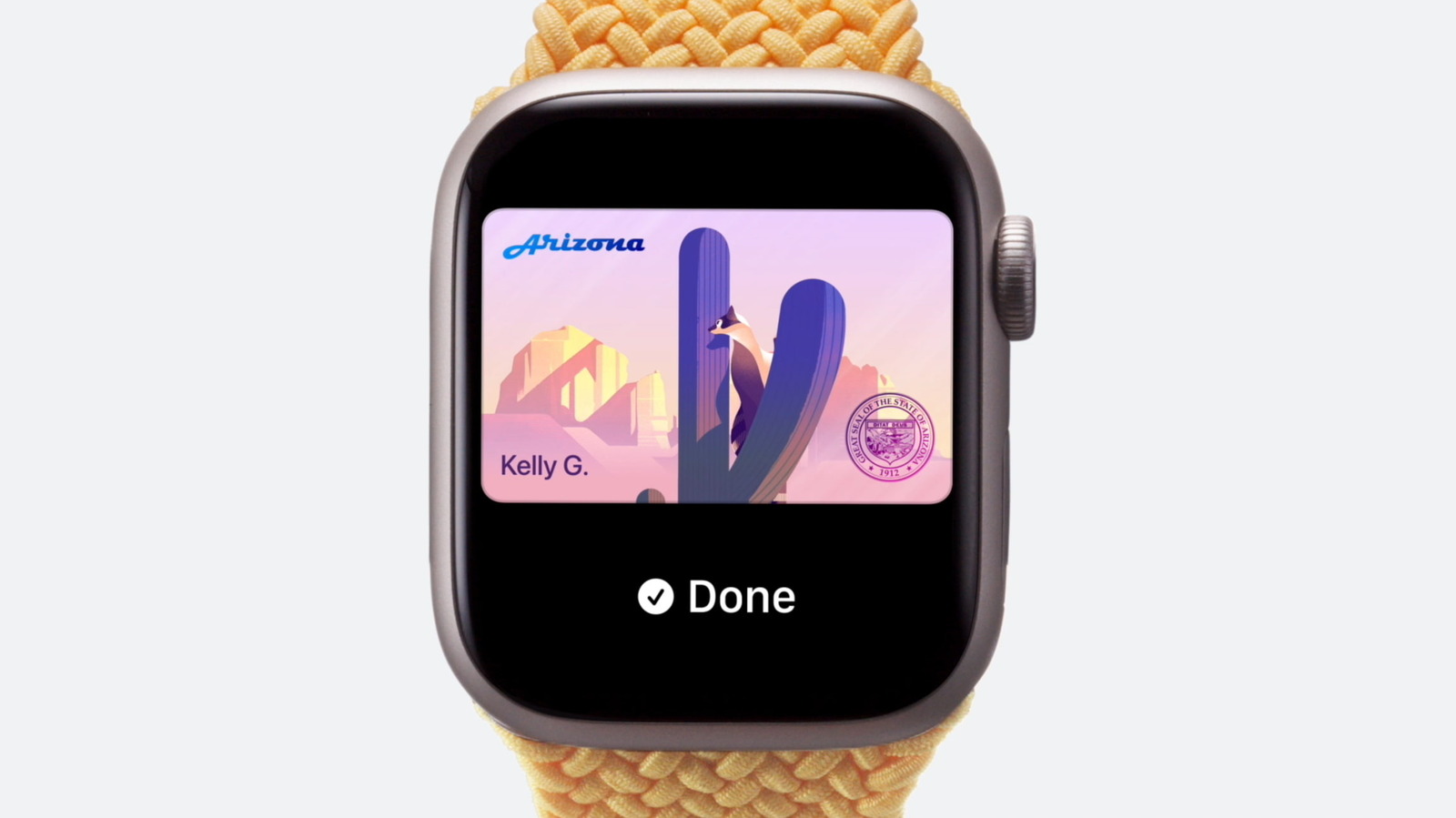
In certain states, you can add a digital license to Apple Wallet so you don't need to carry a physical ID all the time.
It's been several years since Apple added the option to store digital versions of your personal identification on iPhone and Apple Watch. This can be useful in several ways, such as helping you zip through airport security checkpoints . Along with adding a state ID or passport to Apple Wallet, there's also the option to create a digital version of your driver's license.
Having a digital driver's license means you won't necessarily need to reach into your pocket, dig out your wallet and present your physical card when you need to prove your identity or age. Some businesses and venues (such as bars and restaurants) support these digital IDs, though this isn't consistent or widespread yet.
Beyond the convenience factor, there's a security consideration here too. Your digital driver's license is encrypted and stored securely on your device. Apple says neither it nor the issuing authority can see where or when you share your digital ID.
Before you present your digital ID for someone to scan, you'll be able to see which data they'll have access to. For instance, if a bartender scans your digital ID, they might only see confirmation you're over 21 and that you have a matching photo. Your info is only shared after you authenticate using Touch ID or Face ID.
Adding a driver's license to Apple Wallet is a straightforward process. Open the Wallet app on your iPhone and tap the Plus (+) icon. Select Driver's License and ID Cards , followed by your region or state. You can choose whether you want to add your license only to your iPhone, or if you want it on your Apple Watch as well (you can add it to your Apple Watch at a later time, so don't worry).
Next, you'll need to scan both sides of your license. Apple recommends you do this in a well-lit environment against a neutral background.
After that, you'll have to confirm your identity. You'll need to take a selfie or Live Photo, and you might be asked to tilt your head in certain directions or smile. Again, a bright area with even lighting and a plain background is best. Be sure to remove sunglasses and any other accessories from your head.
Read Full Story at Engadget →