How to block time-wasting apps on iPhone using Screen Time
If you want to stop using your phone so much, Screen Time can help. Everyone knows how easy it is to get sucked into spending time on your phone when you don't intend to. Maybe you're trying to spen…
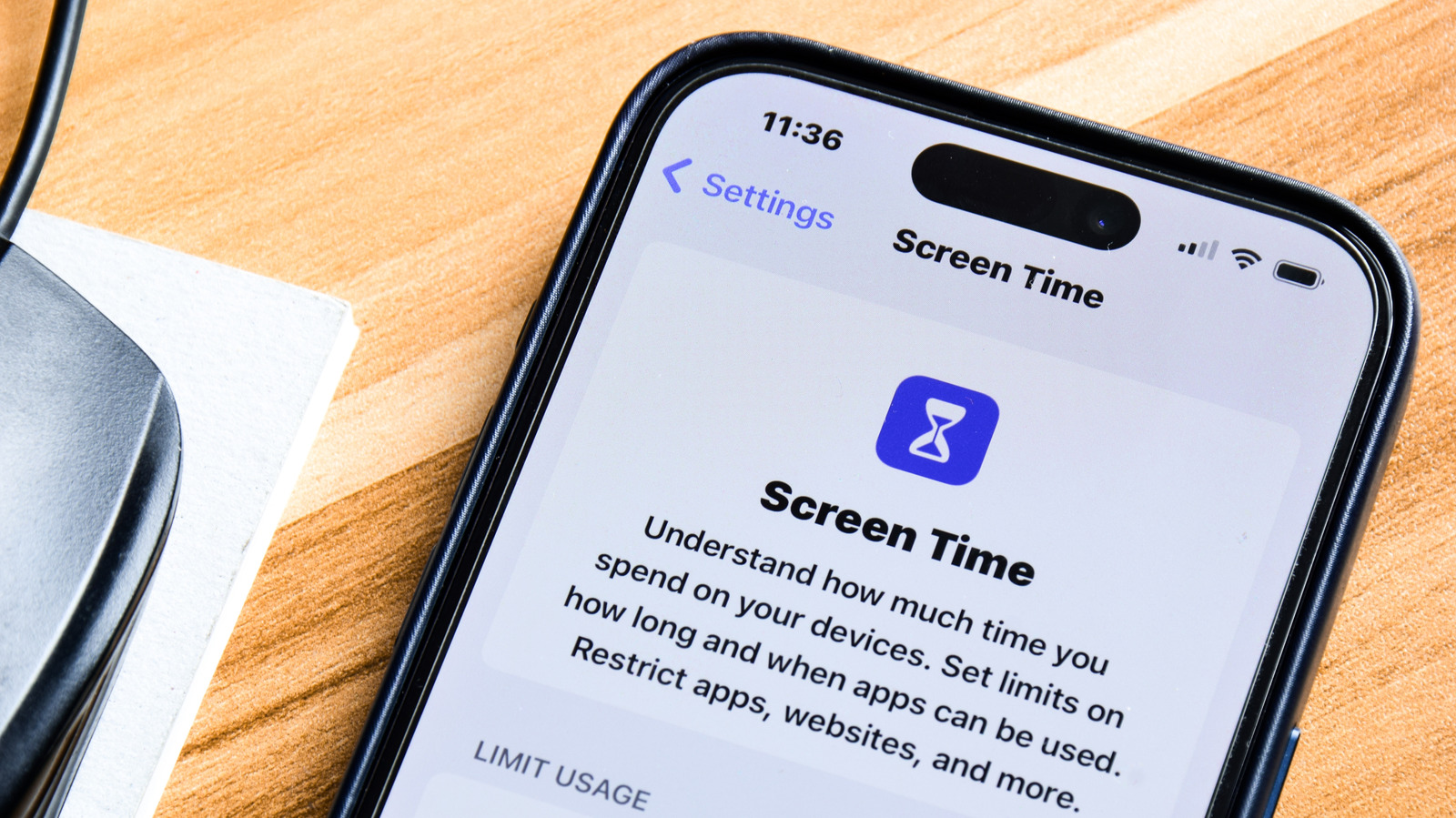
If you want to stop using your phone so much, Screen Time can help.
Everyone knows how easy it is to get sucked into spending time on your phone when you don't intend to. Maybe you're trying to spend less time on a specific app or want to avoid using your phone entirely during certain periods. Either way, a built-in feature of your iPhone called Screen Time can help you regain control of when and how often you use your phone.
And even if you don't struggle with your own phone usage, Screen Time's feature suite is a great way to restrict features on your child's iPhone or iPad. If you've never taken a look at this menu, you should get acquainted.
To begin using Screen Time, open Settings > Screen Time on your iPhone or iPad. At the top, you'll see a chart of how much you've used your device per day this week. Tap See All App & Website Activity to dive deeper. This page shows your daily average screen times (including app categories), the apps you've spent the most time in, how many times you unlock your device, which apps you use first after unlocking, and what apps are sending you the most notifications (and thus causing you to look at your phone).
This historical information provides a good background on how much you use your phone so you can make informed choices in the below menus. If you have multiple Apple devices, tap Devices at the top-right to filter for just one of them. Toggle between Week and Day breakdowns at the top, using the arrows to move back or forward in time.
Before you set up any of Screen Time's modes, you should set which apps will stay available during restrictions. Select Always Allowed to pick from your list of installed apps. Then using the Contacts dropdown will let you select whether you can talk to any phone number or only a list of your choosing.
Downtime is the first option for limiting your usage. When enabled, you can only access the apps you've selected above and phone calls from the contacts you've set. Toggle it manually here, or use Scheduled to customize when it activates on a per-day basis. You'll get a warning five minutes before Downtime activates.
App Limits are the other major way to cut down on phone usage. Choose Add Limit to see a breakdown of your apps by category, like Social , Games and Entertainment . Use the bubbles on the left side to apply a limit to all apps in a group, or expand the dropdown to pick them individually. There's also a Websites button if you want to go beyond apps.
Read Full Story at Engadget →