How to change Siri's voice
Siri's voice will be more expressive in iOS 27, but only if you have the latest hardware. Apple is still playing a cautious catch-up game with Google and Samsung in deploying agentic AI features and…
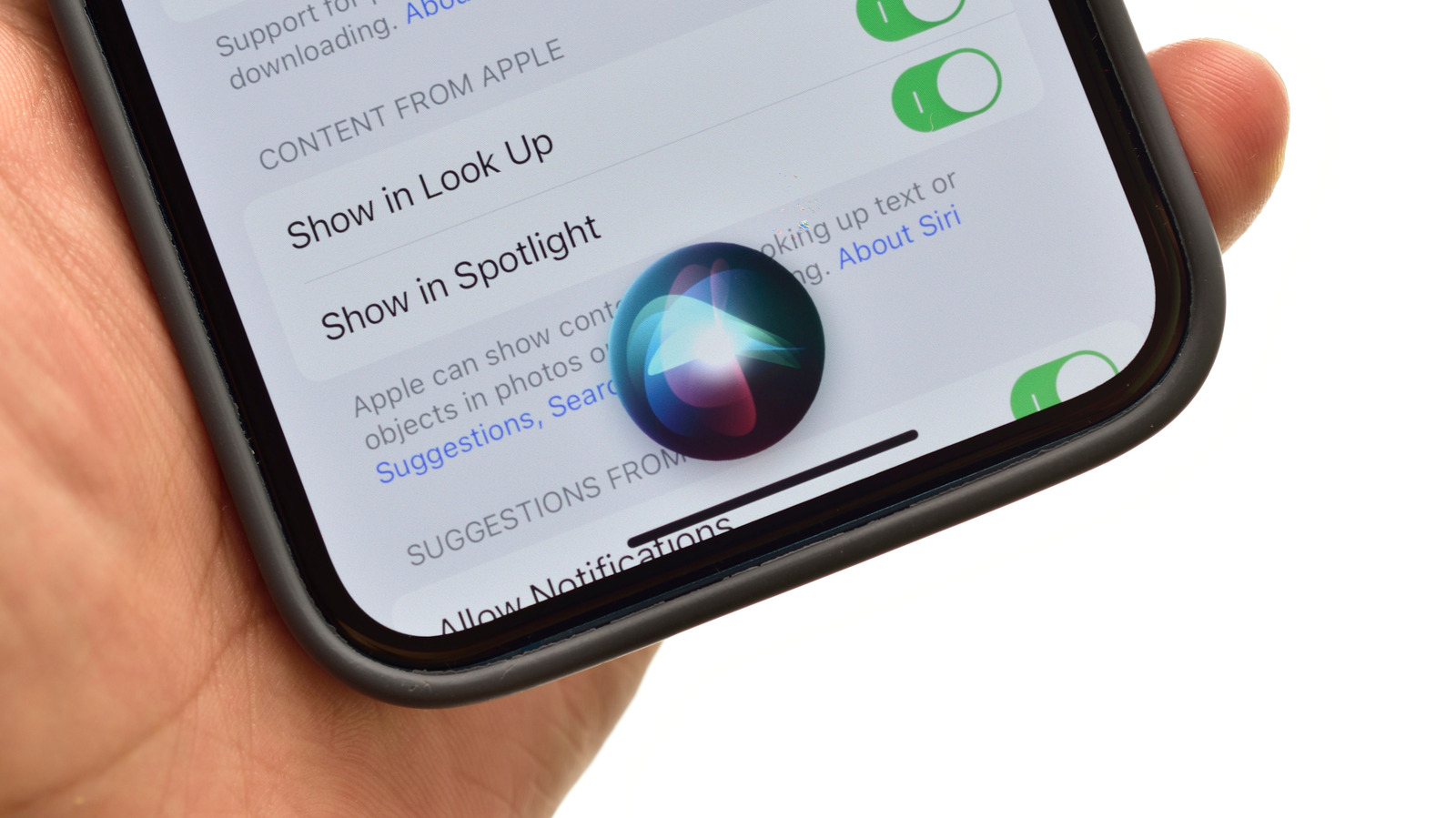
Siri's voice will be more expressive in iOS 27, but only if you have the latest hardware.
Apple is still playing a cautious catch-up game with Google and Samsung in deploying agentic AI features and AI assistant capabilities. But the company is looking to change that with the upcoming release of iOS 27 and a complete overhaul of Siri. But if you want to change Siri's voice or make a few additional tweaks to the iOS mascot, you don't have to wait for the new update to roll out in mid-September.
On current versions of iOS and iPadOS, go to Settings > Apple Intelligence & Siri > Voice . Select one of the available options, listen to the playback, and decide whether it's the right option for you. You may have to wait a moment as the new accent or voice downloads, but it doesn't take long. Just make sure you stay connected to WiFi or your carrier network until it's complete.
You can also change how Siri responds by going to Settings > Apple Intelligence & Siri > Talk & Type to Siri or Siri Responses , depending on your software version. From here, you can choose whether Siri speaks out loud, responds quietly or responds with on-screen text only. However, if you jumped on the iOS 27 bandwagon a little early with the iOS 27 beta, you may have a few more Siri-related options to toy with.
Siri Expressive Voice is Apple's upcoming term for a more versatile and natural-sounding Siri in iOS27. Unfortunately, a fully customizable Siri Expressive Voice will be restricted to the iPhone 17 Pro, Pro Max and Air and iPads with an M4 chip or newer and 12GB of RAM. Compatible devices will let iPhone, iPad, and Mac users customize the expressiveness and pace of Siri's voice. You'll have more control over Siri's delivery, but not necessarily a larger list of voice varieties in the current Siri menu.
If you have access to and download the iOS 27 beta , you won't see much of a difference in the Settings menu. However, tapping Settings > Siri > Voice will open up a new screen, all black with a radiating white orb in the center. Selecting a voice presents a drop-down menu. As of this writing, only American and British options will reveal Pace and Expressivity sliders. The other English options and languages lack adjustment features. Sliding the button to the right increases the sense of emotion, dynamic emphasis and inflection of Siri's voice. Sliding to the left makes the voice more robotic and neutral.
If you want to speed Siri up, slow things down, or create a little breathing room between your query and Siri's response, you don't need the new iOS 27 update to do so. Open Settings > Accessibility > Siri . Apple groups several behavior controls in this menu, with a long Speaking Rate slider running across the screen. Depending on your device and update status, you'll have several adjustable options to choose from:
Speaking Rate: Adjust Siri's voice towards a slower or faster pace.
Read Full Story at Engadget →