How to connect your Roku Streaming Stick or TV to Wi-Fi without the remote
All isn't lost. These tricks can get you streaming again in no time. If you've misplaced your Roku remote, don't sweat it — it happens to the best of us. The good news is that you don't need it to g…
All isn't lost. These tricks can get you streaming again in no time.
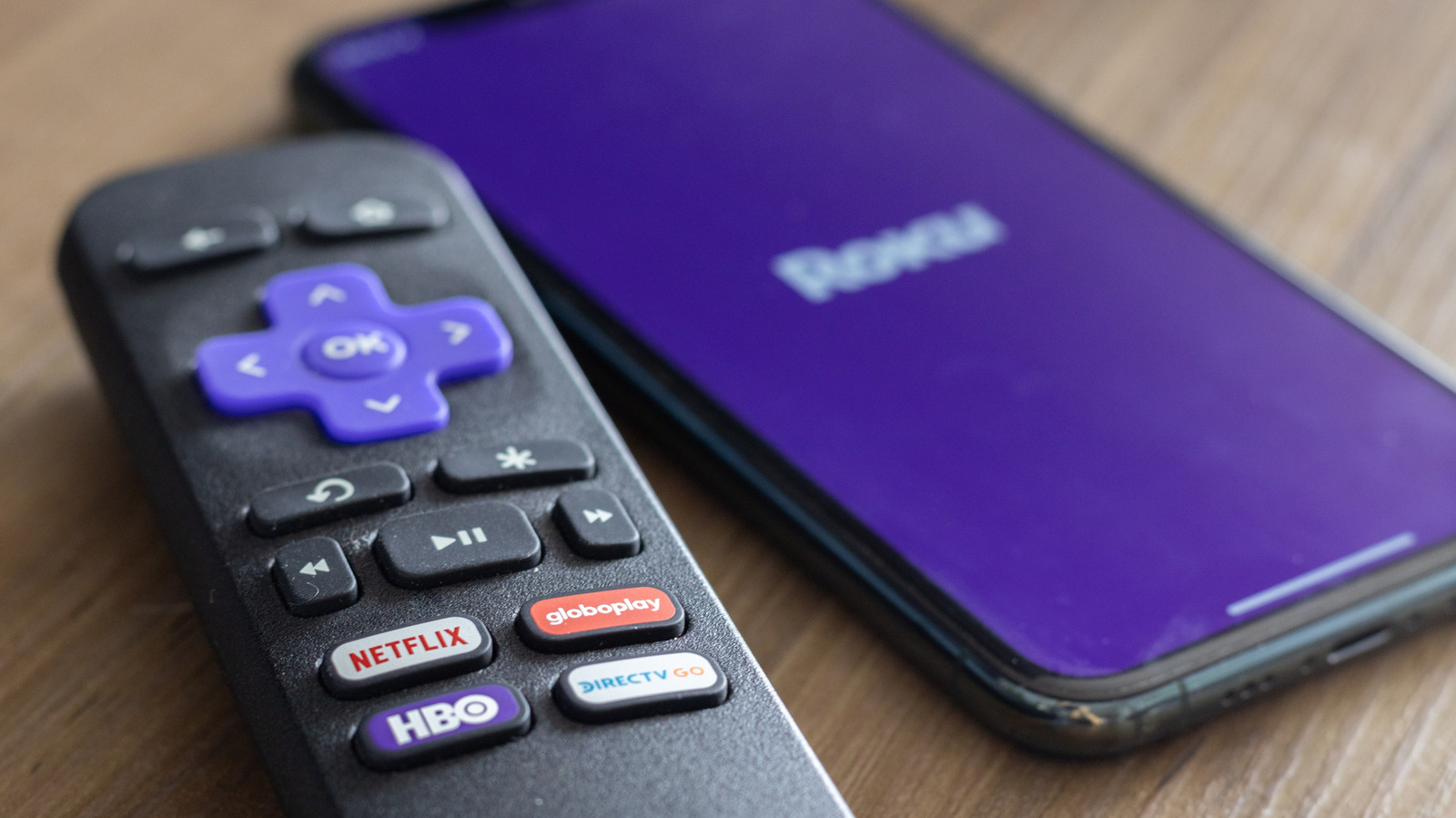
If you've misplaced your Roku remote, don't sweat it — it happens to the best of us. The good news is that you don't need it to get back online. Whether your Roku lost its connection after a router upgrade or you've simply no idea where that remote ended up, there are still ways to reconnect without needing the remote at all.
You can connect your Roku to Wi-Fi without a remote using the free Roku mobile app, a mobile hotspot trick or an Ethernet cable. The right method depends on whether your Roku is already online and what devices you have available.
One of the first things we have to figure out is why your Roku is not letting you connect to Wi-Fi. There are a handful of reasons why this could be happening. The most frequent one is a mistyped password. Signal strength is another common issue. Older Roku models could even have issues if you're trying to connect it to the 5GHz network instead of the 2.4GHz band it actually supports.
If the password and signal both check out, you should try unplugging the Roku for about 10 seconds, then power-cycling the router and modem separately for about 30 seconds to clear any glitches.
The quickest fix to your internet-less Roku is to use the Roku mobile App. How to install the Roku mobile app? Well, you go download it from the iOS App Store or the Google Play Store . It's absolutely free to get and use.
Connect your smartphone to the same Wi-Fi network your Roku is currently using.
Open the app, tap Devices , and select your Roku. Tap on Remote to open the virtual on-screen controller.
Read Full Story at Engadget →