Improve your Roku TV's image quality by changing these settings
Your Roku TV doesn't look as good as it could when you take it out of the box. Out of the box, your Roku TV likely doesn't offer the best possible picture quality. This is because manufacturers ofte…
Your Roku TV doesn't look as good as it could when you take it out of the box.
Out of the box, your Roku TV likely doesn't offer the best possible picture quality. This is because manufacturers often choose default settings to make their TVs stand out amidst a sea of competitors in stores. But with a few adjustments, you can get a more neutral image that looks more lifelike and preserves the artistic intent of whatever you watch.
You don't need any professional display calibration equipment to get the most out of your Roku TV. A different picture mode or a handful of small adjustments to the TV's settings can make a surprisingly big difference to the image. Understanding what each setting means on your Roku TV helps you know which ones to pick for the best picture quality.
Modern TVs ship with several picture modes, but some are objectively more accurate than others. Some higher-end models even go as far as offering a Filmmaker mode that disables much of the TV's image quality tweaks and post-processing. But if your TV lacks a calibrated or Filmmaker mode, you should be able to manually tweak several settings to improve the image quality.
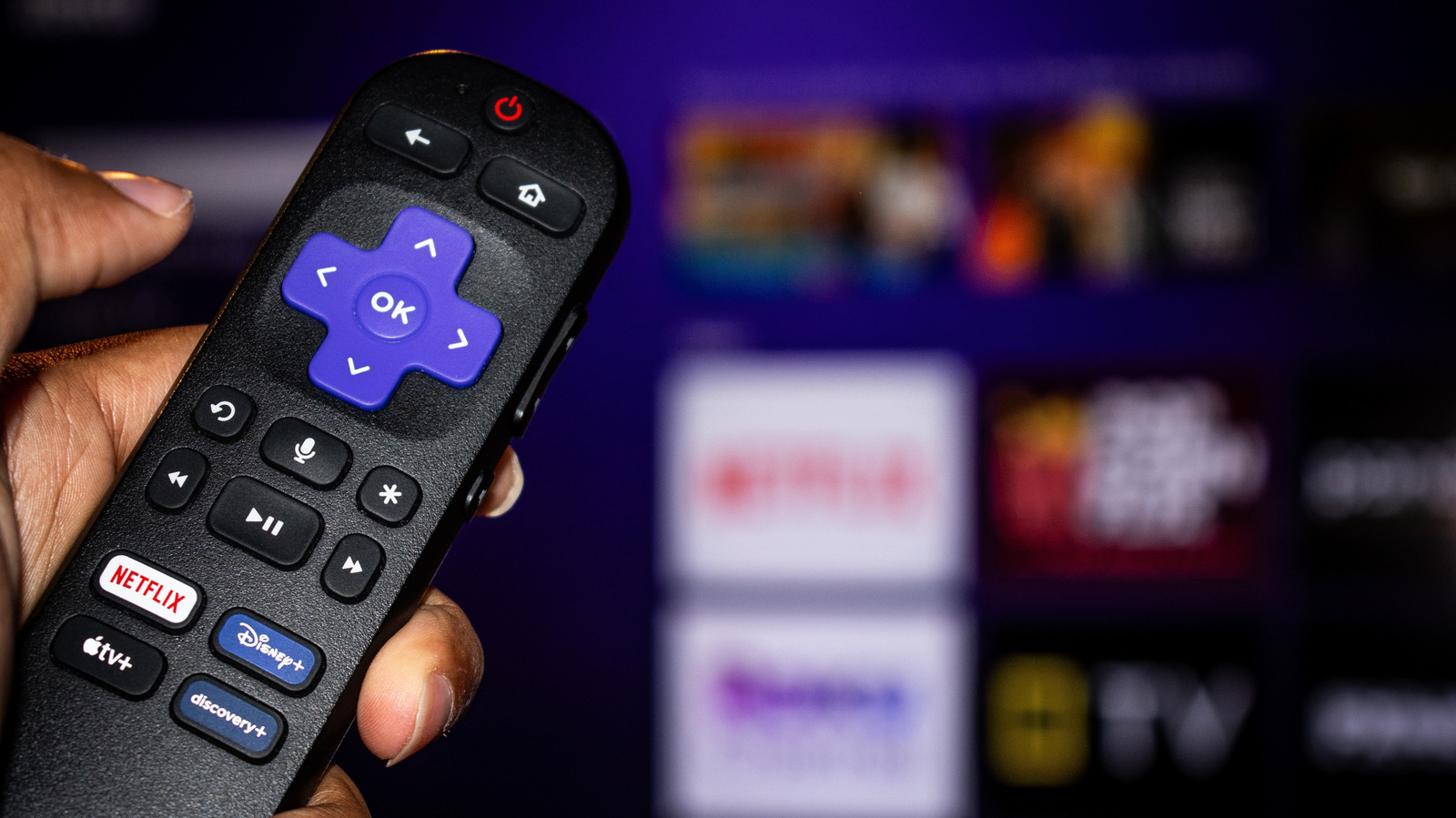
You'll find these picture modes on your Roku TV by pressing the * (star) button on your remote and selecting Picture Settings . If it doesn't appear, start playing something first. You should find three options here: Display Brightness , Picture Mode , and Customize picture .
Starting with Picture mode : choosing Standard or Movie will offer the best accuracy, while Vivid will boost color saturation, brightness and contrast. While manufacturers often use Vivid mode to emphasize their TVs in showrooms, the image almost always seems more exaggerated than it should to my eyes. Between Standard and Movie modes, the latter will have less image processing and skew slightly warmer in color temperature. Finally, Roku Smart Picture will try to detect what's on display and pick the right picture mode for it.
You could stop after picking a picture mode, but also have the option to further dial in specific settings like brightness, contrast and sharpness in the Customize picture menu. The Backlight setting does what it suggests; a higher value (greater intensity) is generally better for bright rooms. You'll want to adjust the other settings gradually, depending on what looks good to your eyes.
For instance, a higher contrast or sharpness value isn't always better, as the latter can make the picture look overly processed. I'd recommend increasing or decreasing these levels in small increments, then watching something to see how they look in practice. If you need guidance, you should be able to find recommended calibration guides for your model online, which gives you a baseline to work from.
Read Full Story at Engadget →