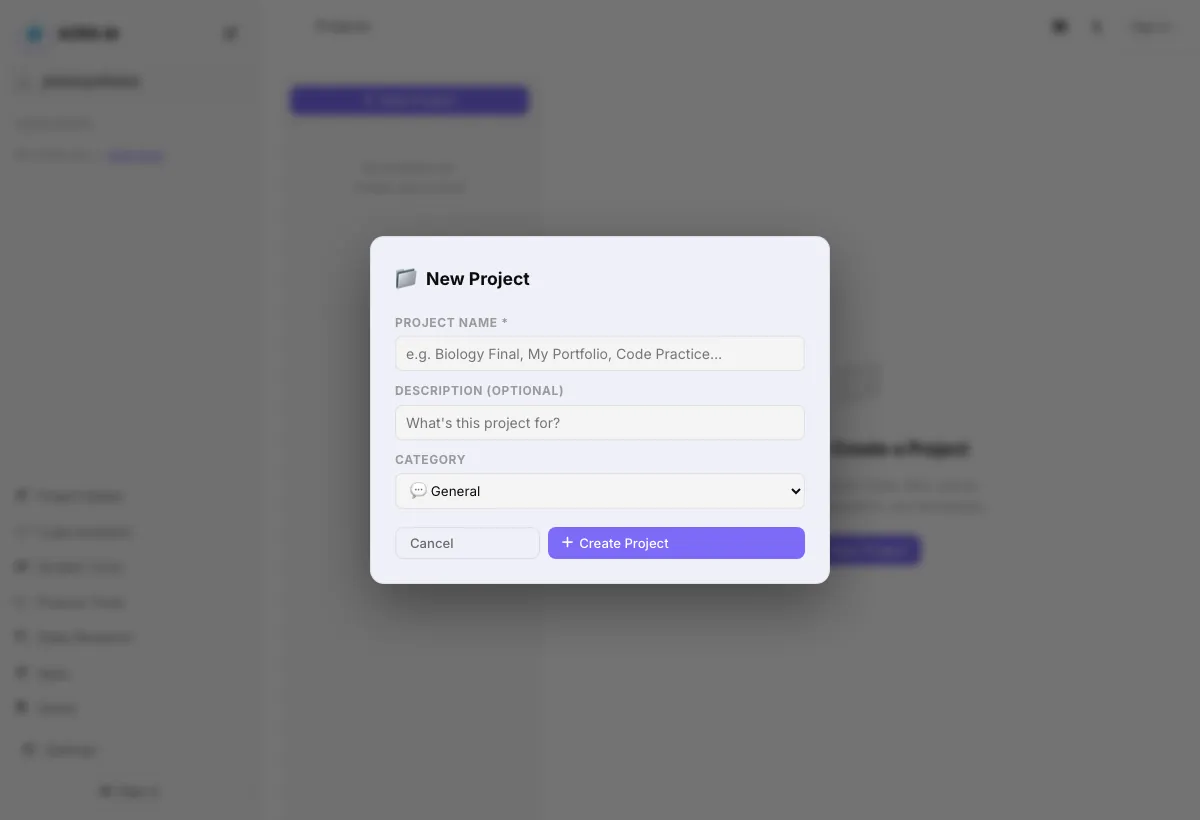
See AI Project Maker — Generate Full Projects with Code in action
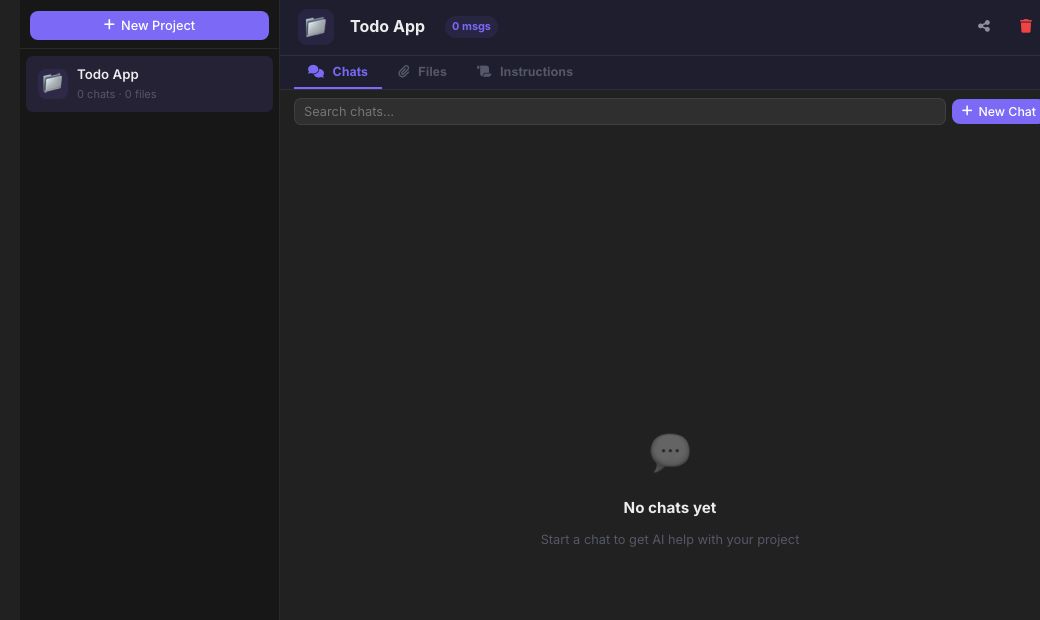
AI Project Maker — Generate Full Projects with Code
Project Maker turns a plain-English app idea into a real, working starter project: describe what you want to build and the AI generates the actual files and code needed to get started, not just a description of what you'd need to do.
It's built for the 'I know what I want but not where to start' moment — a landing page, a small script, a simple web app — and gives you working code you can copy out, run, and keep building on.
Use it in 4 steps
Click New Project and give it a name (e.g. 'Todo App').
Open New Chat inside that project — this is where you describe what to build.
Describe the app or script you want, in plain English, and send it.
Read the generated code in the chat, copy it out, and ask follow-up questions to refine it further.
Key features
Idea to code
Describe a project in a sentence or two and get generated code files back.
Multiple projects
Keep several project ideas going side by side in the left-hand project list.
Project chat
Ask follow-up questions or request changes within the same project's context.
Free, no login wall for a first try
Start generating immediately; sign up only if you want projects saved long-term.
A real example, step by step
Inside a new project, send 'Generate a simple HTML+CSS+JS to-do list app with add, complete and delete' in the project chat and get back a complete, working single-file app with a features list and usage instructions — ready to save and open in a browser.
Who uses this tool
Beginners
See a complete working example instead of staring at a blank file.
Developers prototyping fast
Skip the boilerplate and get straight to a working skeleton.
Non-technical founders
Turn an app idea into real, inspectable code to hand to a developer or explore themselves.
Tips for the best results
- Be specific about the tech stack if you have a preference (e.g. 'React' or 'plain HTML/CSS/JS') — otherwise the AI picks a sensible default.
- Ask for one core feature first, then use project chat to add more — smaller asks generate more reliable code than one giant spec.
- Always read and test generated code before using it in anything real — treat it as a strong first draft, not a finished, audited product.
- Use Code Assistant afterward if you want a generated file explained line by line.
Common mistakes to avoid
- Asking for something enormous ('a full e-commerce platform with payments and admin') in one go — break big ideas into stages instead.
- Not specifying the language/framework and then being surprised by the AI's default choice.
- Deploying generated code straight to production without reviewing it for security or correctness.
Frequently asked questions
Does it generate a complete, production-ready app?
It generates a real, working starting point — good for prototypes, learning and demos. Treat it as a strong first draft and review/test before production use.
What languages/frameworks can it use?
Whatever you ask for — plain HTML/CSS/JS, Python, React, and most mainstream languages/frameworks the underlying AI models know well.
Can I keep editing a project?
Yes, use project chat to ask for changes or additions within the same project.
Is it free?
Yes, generating projects is free with no limit.
Do I need an account?
No for a first try; sign up if you want your projects saved across sessions and devices.
Can it explain the code it generates?
Yes, ask follow-up questions in project chat, or paste the code into Code Assistant for a line-by-line explanation.
Free, fast and private by design
No signup, no watermark. New AZRS tools are added every week.