AZRS AI

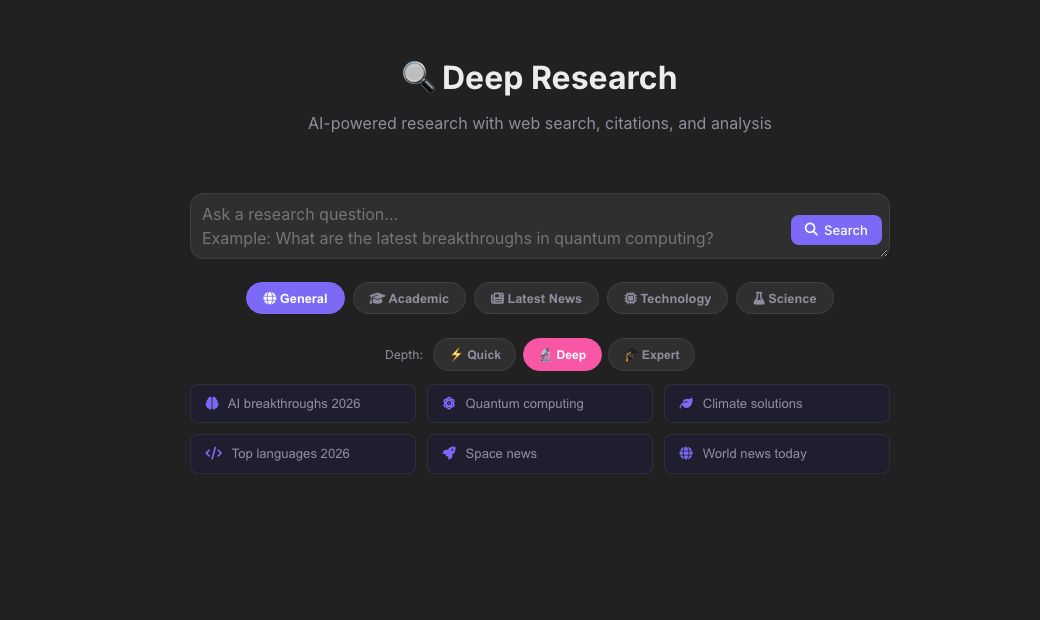
🔍 Deep Research

AI-powered research with web search, citations, and analysis
Depth:
Preview

See AI Deep Research — In-Depth Reports with Citations in action

azrscorp.com/ai/research/
Screenshot of the free AI Deep Research — In-Depth Reports with Citations tool on AZRS QuickFix
1Open Deep Research and type your question or topic.
2Submit and let it search the live web plus generate the analysis.
3Read the structured report — Overview, Findings, Analysis, Conclusion.
Overview

AI Deep Research — In-Depth Reports with Citations

Deep Research asks a question, actually searches the live web for it, and hands both the search results and the question to the AI with a 'research analyst' prompt — so the answer comes back structured (Overview → Key Findings → Analysis → Conclusion → Sources) with inline [1][2] citations pointing at real sources, not an unsourced wall of text.

It's built for the kind of question where you'd normally open ten browser tabs — it flags contested claims, distinguishes strong from weak evidence, and calls out what may have changed recently, instead of presenting everything with false confidence.

Highlights

Key features

Live web search

Pulls real, current search results into the answer instead of relying only on the AI's training data.

Structured report format

Overview, Key Findings, Analysis, Conclusion and Sources, every time.

Inline citations

[1][2]-style references tied to real linked sources.

Uncertainty flagging

Clearly marks contested claims and notes where evidence is weak or recent developments may have changed things.

Walkthrough

How to use it

  1. Open Deep Research and type your question or topic.
  2. Submit and let it search the live web plus generate the analysis.
  3. Read the structured report — Overview, Findings, Analysis, Conclusion.
  4. Check the Sources section and click through to verify anything important.
In practice

Worked example

Example

Ask 'What are the current approaches to carbon capture and how effective are they?' and get back a structured report citing real sources, distinguishing well-evidenced methods from still-experimental ones.
Audience

Who uses this tool

Students writing papers

A well-sourced starting point for a research assignment, not a replacement for reading primary sources.

Professionals researching a topic fast

Get a structured overview before a meeting or decision instead of manual searching.

Anyone fact-checking a claim

See what's well-evidenced versus contested on a topic.

Pro tips

Tips for the best results

  • Ask a specific question rather than a broad topic — 'What caused the 2008 financial crisis?' works better than just 'financial crisis'.
  • Always click through to the cited sources for anything you plan to use in formal work — treat this as a strong starting point, not a final authority.
  • Use this instead of general chat for anything time-sensitive, since it actively searches rather than relying on the AI's training cutoff.
  • If the topic is contested, look specifically for the ⚠️ flagged sections in the answer — they highlight where experts disagree.
Watch out

Common mistakes to avoid

  • Treating the AI's synthesis as the final word without checking the underlying cited sources.
  • Asking overly broad questions and getting a shallow answer as a result — narrow the question for depth.
  • Using it for extremely recent breaking news within the last few hours, where search indexing may not have caught up yet.
Why AZRS

Why use AZRS QuickFix?

It is 100% free, needs no signup and has no watermark or usage limits. The tool runs in your browser, so what you type stays on your device, and it works on phones, tablets and desktops. New tools are added every week — bookmark this page or browse the full QuickFix toolbox.

FAQ

Frequently asked questions

Does it actually search the web, or just use the AI's training data?

It does a real live web search and feeds those results to the AI alongside your question, so answers reflect current information, not just training data.

Are the citations real, clickable sources?

Yes, the [1][2] style references are tied to the actual search results used to build the answer.

Is this the same as regular AI Chat in Research mode?

Deep Research is specifically built around live web search plus the structured report format; Chat's Research mode is the same underlying prompt style but without the dedicated research-page layout.

Is it free?

Yes, unlimited and free.

How accurate is it?

It's as accurate as the sources it finds — always verify anything important by checking the cited sources directly.

Can I ask about very recent events?

Yes, if they're indexed by web search; extremely recent (same-hour) breaking news may not be indexed yet.

⚙️ Settings
General
Response language
AI replies in this language
Enter to send
Shift+Enter for new line
Auto web search
Search web for recent questions
Show timestamps
Time on each message
Auto-scroll to bottom
While AI is responding
Show source links
Display web search sources
AI & Models
PreciseCreative
This is added before every conversation to customize AI behavior.
Chat
Auto-generate chat titles
AI names chats by topic
Save chats locally
Keep history on this device
Show thinking dots
Animation while AI responds
Code syntax highlighting
Colorize code blocks
Auto-open canvas for code
Open side panel on code reply
Show provider badge
Which AI answered
Message sound
Play sound on new message
Appearance
Theme
Accent color
Font size
Message width
Compact messages
Less padding between messages
Animated backgrounds
Subtle motion effects
Voice & Speech
Auto-send after voice
Send immediately after mic stops
AI reads responses aloud
Text-to-speech for AI answers
Keyboard Shortcuts
New chatCtrl+N
Focus inputCtrl+/
Toggle sidebarCtrl+B
Open settingsCtrl+,
Send messageEnter
New lineShift+Enter
Stop generationEscape
Toggle dark/lightCtrl+D
Privacy & Data
Save chat history
Store messages on this device
Share usage for improvement
Anonymous analytics only
Link preview in messages
Generate previews for URLs
Remember model choice
Persist selected model
Notifications
Desktop notifications
When AI finishes responding
Sound on response
Subtle chime
Error alerts
Show pop-up on errors
Advanced
Debug mode
Show AI provider in responses
Markdown rendering
Format bold, code, lists etc.
LaTeX math rendering
Render math equations
Link detection
Auto-link URLs in messages
Check API keys status
Account
👤
Sign in to AZRS AI
Save chats to your account, sync across devices, and access your history anywhere.
Log in Create account