Camera Push-Up Counter (AI)
Your camera counts every push-up and checks your form, from any angle · free, no signup
Voice & sounds
See Camera Push-Up Counter (AI) in action
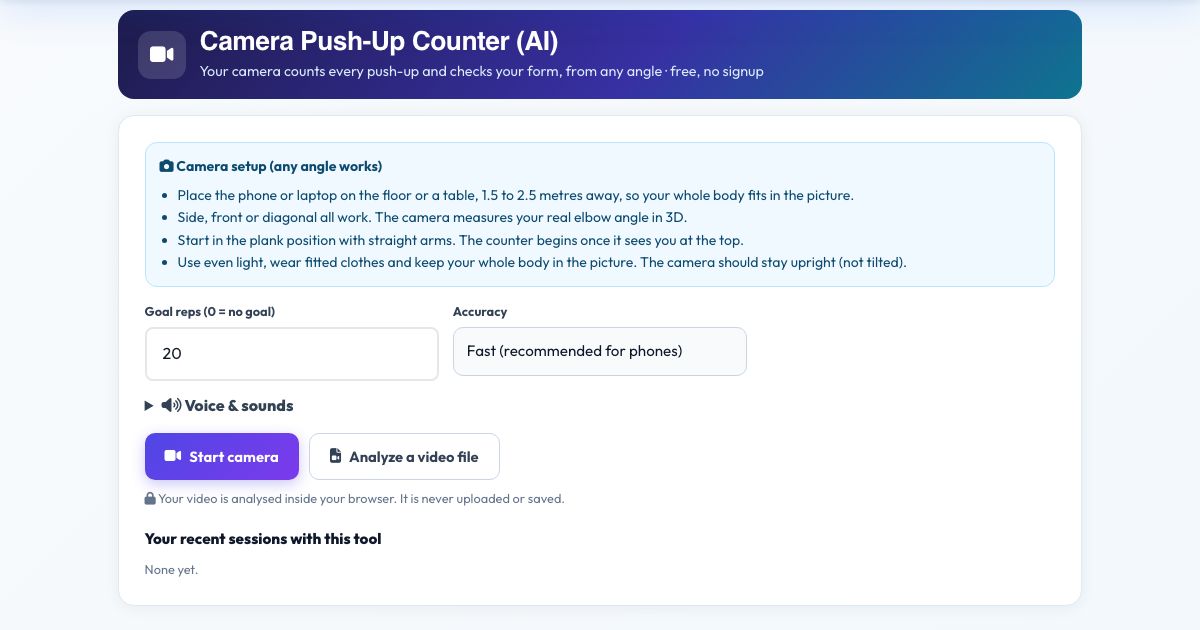
Camera Push-Up Counter (AI)
Stop counting in your head. Point your camera at yourself, get into plank position and this counter watches your skeleton in real time: it measures your elbow angle and counts a rep each time you go down to about 90 degrees and push back up to straight arms. It talks to you too: it says each number, tells you to 'go lower' when you cheat a rep and warns you if your hips sag or pike.
It works from any camera angle. Instead of guessing from a flat picture, it rebuilds your body in 3D and measures real joint angles, so a camera in front of you, beside you or diagonal gives the same result. Set a goal, press Start, and the coach counts you through 'one, two, three' to your target. Everything is processed in your browser and no video leaves your device.
Key features
Counts only full reps
A rep needs the elbow to reach about 90 degrees, then full extension, so half reps do not count.
Works from any angle
3D joint angles from MediaPipe pose detection.
Form warnings
Spoken tips when your back sags or you do not go low enough.
Voice counting and goals
Hear each rep, set a target and get a goal-reached call.
Video file mode
Count push-ups in a recording.
Private
No upload, no recording.
How to use it
- Put your camera on the floor or a table 2 metres away so your whole body is in view.
- Press Start camera and allow access. A 5 second countdown gives you time to get into plank.
- Do your push-ups. The number on screen and the voice go up with every full rep.
- Press Finish & save to log the session.
Worked example
Example
Goal 20. You lie side-on to the phone, do 20 clean reps and hear 'one' ... 'twenty, goal reached, great work'. If rep 7 is shallow you hear 'Go lower. Chest to the floor.' and it is not counted.
Who uses this tool
People training alone
A rep counter that never loses count.
Challenge participants
Reliable counts for 30-day push-up challenges.
Coaches and PE teachers
Objective reps and form feedback.
Beginners
Learn depth and a straight back.
Tips for the best results
- Wear fitted clothing so the arms are visible.
- Use a light background and good light.
- A side or diagonal view shows your back line best.
- Use the 'More accurate' mode on faster devices.
Common mistakes to avoid
- Putting the camera so close that your feet or hands are cut off.
- Starting in a kneeling pose when the tool expects plank (use knees only if your whole body line is visible).
- Moving the camera during the set.
Why use AZRS QuickFix?
It is 100% free, needs no signup and has no watermark or usage limits. The tool runs in your browser, so what you type stays on your device, and it works on phones, tablets and desktops. New tools are added every week — bookmark this page or browse the full QuickFix toolbox.
Frequently asked questions
How does it count a rep?
A rep is counted when your elbows bend to about 90 degrees and you return to straight arms while your body stays level.
Does it detect bad form?
It flags a sagging or piking back and shallow reps. It is a guide, not a replacement for a coach.
Does it work from any camera angle?
Yes. The tool measures your joints in 3D, so front, side and diagonal views all give the same angles. Keep the phone or laptop upright (not tilted on its side) and keep your whole body in the picture.
Is my video uploaded or saved?
No. The pose detection runs inside your browser on your own device. Nothing is recorded, uploaded or stored, and the camera stops when you finish.
What do I need?
Any phone, tablet or computer with a camera and a modern browser (Chrome, Edge, Safari, Firefox). The page must be opened over https for the camera to work.
Can I use a video instead of the live camera?
Yes. Press 'Analyze a video file' and pick a recorded workout; it is counted the same way.
The counter is not counting. What should I check?
Make sure your whole body is visible, the room is lit, and you start from the correct start position. The message under the picture tells you what the camera is missing.