DXF ⇄ SVG Converter
Convert DXF to SVG and SVG to DXF for laser cutters, CNC and CAD · free, no signup
See DXF ⇄ SVG Converter in action
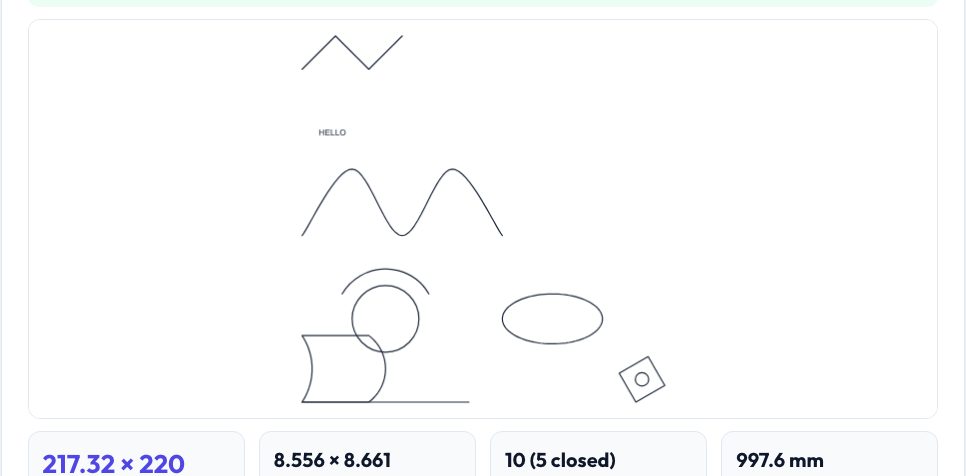
Free DXF ⇄ SVG Converter
DXF is the language of CAD and CNC; SVG is the language of vector graphics and laser software. Moving between them usually loses something — curves turn into thousands of straight segments, arcs are mangled, units vanish. This converter parses the real DXF structure (LINE, CIRCLE, ARC, LWPOLYLINE and POLYLINE with bulge arcs, ELLIPSE, SPLINE evaluated as NURBS, TEXT/MTEXT, and INSERT blocks with scale, rotation and arrays) and writes SVG that keeps circles as circles and arcs as arcs, grouped by layer at true millimetre scale.
Going the other way, SVG paths (M, L, H, V, C, S, Q, T, A and relative variants), rectangles with rounded corners, circles, ellipses, polylines, polygons, groups and transforms are flattened to a precision you choose and written as DXF in AutoCAD 2000 or R12 format with a proper layer table and units header. DXF has no units unless the file says so, so a Units selector lets you fix the classic 25.4× size mistake and the preview shows the real dimensions before you download.
Key features
Real DXF structure
Arcs, circles, bulged polylines, ellipses, splines, text and nested blocks — not just lines.
Unit-aware
Reads $INSUNITS, lets you override, and always shows size in mm and inches.
Layers preserved
DXF layers become SVG groups; SVG groups/ids become DXF layers.
Clean output
True-scale SVG and standards-correct DXF (R2000 or R12) that opens in LightBurn, Inkscape, Fusion, Onshape and QCAD.
How to use it
- Drop in a .dxf or .svg file.
- Check the size, layers and preview; fix units if the size looks wrong.
- Optionally join touching segments and move the drawing to the origin.
- Download the converted file.
Worked example
Example
A DXF exported from Onshape with $INSUNITS=4 (mm), a 120 × 80 plate, 4 circles and a slot, converts to a 120 mm × 80 mm SVG with the circles still circles; the same SVG converted back gives a DXF that reports 0 audit errors in ezdxf.
Who uses this tool
Laser-cutter and CNC users
Move designs between CAD (DXF) and vector tools (SVG).
Onshape / Fusion students
Turn sketch exports into SVG for Cricut/laser software.
Designers
Bring vector artwork into CAD as accurate DXF.
Tips for the best results
- If a DXF looks 25.4× too big or small, set the units manually.
- Join touching segments when cutting so the laser follows continuous paths.
- Convert SVG text to outlines before converting to DXF.
- Check the first dimension in the target software.
Common mistakes to avoid
- Assuming DXF has units when $INSUNITS is missing.
- Importing hatches or solid fills expecting geometry — only outlines are converted.
- Using 'px' SVGs without checking the 96 vs 72 dpi origin.
Why use AZRS QuickFix?
It is 100% free, needs no signup and has no watermark or usage limits. The tool runs in your browser, so what you type stays on your device, and it works on phones, tablets and desktops. New tools are added every week — bookmark this page or browse the full QuickFix toolbox.
Frequently asked questions
Does it keep layers?
Yes — DXF layers become SVG groups and the reverse.
Which DXF versions can it read and write?
It reads ASCII DXF of any version (not binary) and writes AutoCAD 2000 (AC1015) or R12 (AC1009).
Are splines supported?
Yes — NURBS splines are evaluated; splines with only fit points use a smooth interpolation.
Is my file uploaded?
No — conversion runs entirely in your browser.