Webcam Test
Test your camera online — see the live picture, resolution and frame rate · free, no signup
See Webcam Test in action
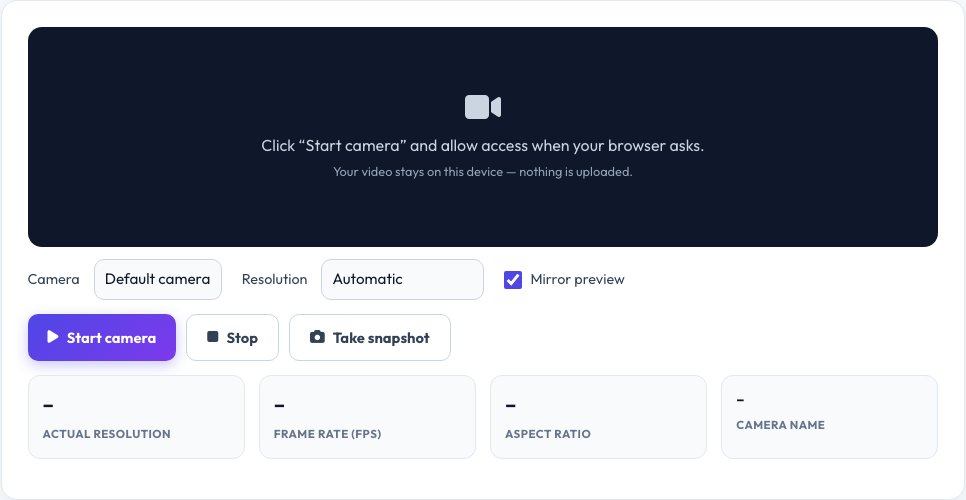
Free Online Webcam Test — Check Your Camera Before the Call
Before a job interview, an online exam or an important meeting, you want to know your camera works. This webcam test opens your camera in the browser, shows the live picture and reports the real resolution, aspect ratio and frame rate your camera is delivering, so you can spot a blurry lens, a dark picture, a wrong camera or a low-resolution feed.
You can choose between several cameras, request HD, Full HD or 4K, mirror the preview like a bathroom mirror and save snapshots. The video is processed only inside your browser — nothing is recorded, uploaded or stored — and the camera turns off the moment you press Stop or close the page.
Key features
Live preview
See exactly what other people will see on a call.
Real resolution and FPS
Reports what the camera delivers, not what it claims.
Switch cameras
Pick between built-in, USB and virtual cameras.
Snapshots
Save a photo to check lighting, focus and framing.
How to use it
- Click Start camera and press Allow when your browser asks.
- Check that the picture is sharp, well lit and not upside down.
- Pick another camera or a higher resolution if you want to compare.
- Click Take snapshot to save a still, then Stop when you are done.
Worked example
Example
Camera: Integrated HD Webcam · 1280 × 720 · 30 fps · 16:9
→ Fine for video calls; choose Full HD if your camera supports it for sharper output.
Who uses this tool
Remote workers and students
Check the camera before interviews, lessons and online exams.
Streamers and creators
Compare cameras and resolutions and check framing.
Support and IT teams
Tell users whether the fault is the camera, the app or the permissions.
Tips for the best results
- Face a window or lamp — light in front of you improves any webcam more than a new camera.
- Clean the lens with a soft cloth; smudges cause haze.
- Close Zoom, Teams and other apps first; only one app can use a camera at a time.
- If the picture is black, check the physical privacy shutter and your system camera permissions.
Common mistakes to avoid
- Sitting with a bright window behind you, which turns you into a silhouette.
- Forgetting that the browser permission is blocked (click the lock or camera icon in the address bar).
- Judging quality by the mirrored view — other people see you un-mirrored.
Why use AZRS QuickFix?
It is 100% free, needs no signup and has no watermark or usage limits. The tool runs in your browser, so what you type stays on your device, and it works on phones, tablets and desktops. New tools are added every week — bookmark this page or browse the full QuickFix toolbox.
Frequently asked questions
Why is my webcam not working?
The most common causes are a blocked browser permission, another app already using the camera, a closed privacy shutter, or a missing driver. The messages on this page tell you which one it is.
Is my video recorded or uploaded?
No. The picture stays in your browser. Nothing is sent to our servers, and snapshots are saved only if you click Save.
Why does the resolution differ from my camera's box?
Browsers and apps request a size; the camera delivers the closest mode it supports. USB bandwidth and low light can also lower it.
Can I test an external or USB webcam?
Yes. Plug it in, click Start and choose it from the camera list.
Does this work on a phone?
Yes, on modern mobile browsers over HTTPS. You can usually switch between front and rear cameras.
Why is the picture mirrored?
Mirror preview is on by default because it feels natural. Untick it to see the picture the way other people see it.