Dead Pixel Test & Screen Checker
11 full-screen colours, 15 test patterns, pixel fixer and an inspection report · free, no signup
A dead pixel never lights up, a stuck pixel is stuck on one colour, and backlight bleed shows as bright edges on black. Pick a colour or test pattern to fill your whole screen — click, press → / Space for the next one, ← to go back, 1–9, 0 to jump to a colour, H to hide this hint and Esc to leave.
Shows a small flashing colour-noise box on black. Drag the box over the stuck pixel and leave it running (10–20 minutes fixes many stuck pixels; it cannot revive a truly dead one).
See Dead Pixel Test & Screen Checker in action
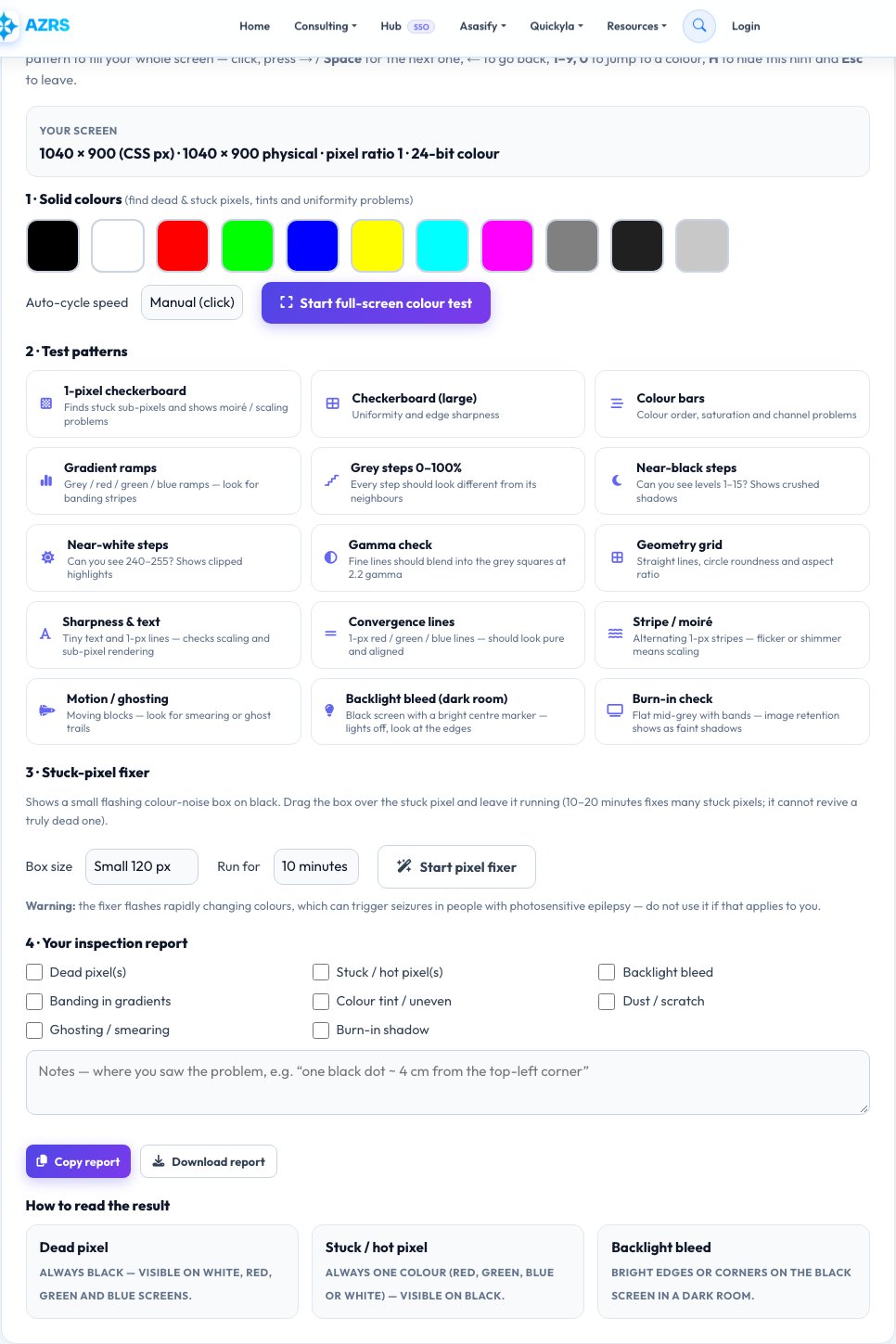
Free Dead Pixel Test — Full-Screen Colours to Check Your Display
A dead pixel is a tiny dot that never lights up; a stuck pixel is stuck on one colour. Both are easiest to see against a plain full-screen colour. This tool fills your screen with black, white, red, green, blue, yellow, cyan, magenta and grey one at a time so any faulty dot stands out, and it is the standard way to inspect a new or second-hand monitor, laptop, tablet, phone or TV.
Click to move to the next colour, use the arrow keys to go back and Esc to leave. Black reveals stuck bright pixels and backlight bleed at the edges; white, red, green and blue reveal dead pixels. Beyond solid colours there are 15 test patterns — 1-pixel checkerboard, colour bars, gradient ramps for banding, grey steps, near-black and near-white steps, a gamma check, geometry grid, sharpness and text, convergence lines, moiré stripes, a motion/ghosting test, backlight-bleed and burn-in checks — plus an auto-cycle mode, a stuck-pixel fixer you can drag over the faulty spot with a 5-minute to 1-hour timer, and a checklist that turns your findings into a copyable report for a warranty claim or return.
Key features
11 solid colours + auto-cycle
Black, white, primaries, secondaries and greys, manual or timed.
15 test patterns
Banding, gamma, ghosting, convergence, sharpness, near-black and more.
Draggable pixel fixer
Noise box with a timer you can place right over a stuck pixel.
Report checklist
Tick what you found and copy or download a report.
How to use it
- Clean the screen and dim the room lights.
- Click a colour (or Start full-screen colour test) and look closely at every part of the screen.
- Try the test patterns for banding, ghosting and gamma problems.
- Tick what you found in the report, then copy it or press Esc to leave.
Worked example
Example
On the white screen you see one black dot → dead pixel.
On the black screen one green dot stays lit → stuck (hot) pixel.
Who uses this tool
Buyers of new and used screens
Inspect before the return or warranty window ends.
Gamers and designers
Make sure the display is clean before critical work.
Repair shops
Quickly check screens after replacement.
Tips for the best results
- Wipe the screen first — dust looks like a dead pixel.
- Test in a dim room; backlight bleed shows best on black.
- Check the manufacturer's dead-pixel policy before you buy.
- Stuck pixels sometimes recover with the noise mode or gentle pressure.
Common mistakes to avoid
- Mistaking dust or a scratch for a pixel defect.
- Using the noise mode if you are sensitive to flashing lights.
- Testing while a screen filter, night light or HDR setting alters the colours.
Why use AZRS QuickFix?
It is 100% free, needs no signup and has no watermark or usage limits. The tool runs in your browser, so what you type stays on your device, and it works on phones, tablets and desktops. New tools are added every week — bookmark this page or browse the full QuickFix toolbox.
Frequently asked questions
What is a dead pixel?
A pixel that stays black because it receives no power. It is permanent and cannot be repaired by software.
What is a stuck pixel?
A pixel stuck on one colour. It can sometimes be fixed by flashing colours or by gentle massage.
How many dead pixels are acceptable?
It depends on the manufacturer's policy and pixel class — many allow a few defects on large screens. Check your warranty.
What is backlight bleed?
Light leaking around the edges of an LCD, visible on a black screen in a dark room. A small amount is normal.
Is the pixel fixer safe?
It is safe for displays but flashing colours can trigger seizures in people with photosensitive epilepsy — do not use it if that applies to you.
Does it work on a phone or TV?
Yes — open the page in the device's browser and tap Start.