Monitor Refresh Rate Test (Hz)
Measure the real refresh rate and frame time of your screen · free, no signup
| Rate | Typical for |
|---|---|
| 60 Hz | Standard monitors, most laptops and TVs |
| 75 / 90 Hz | Budget gaming monitors, some phones |
| 120 Hz | iPhone Pro / iPad Pro / MacBook Pro, modern phones and TVs |
| 144 / 165 Hz | Gaming monitors |
| 240 Hz and up | Esports monitors |
See Monitor Refresh Rate Test (Hz) in action
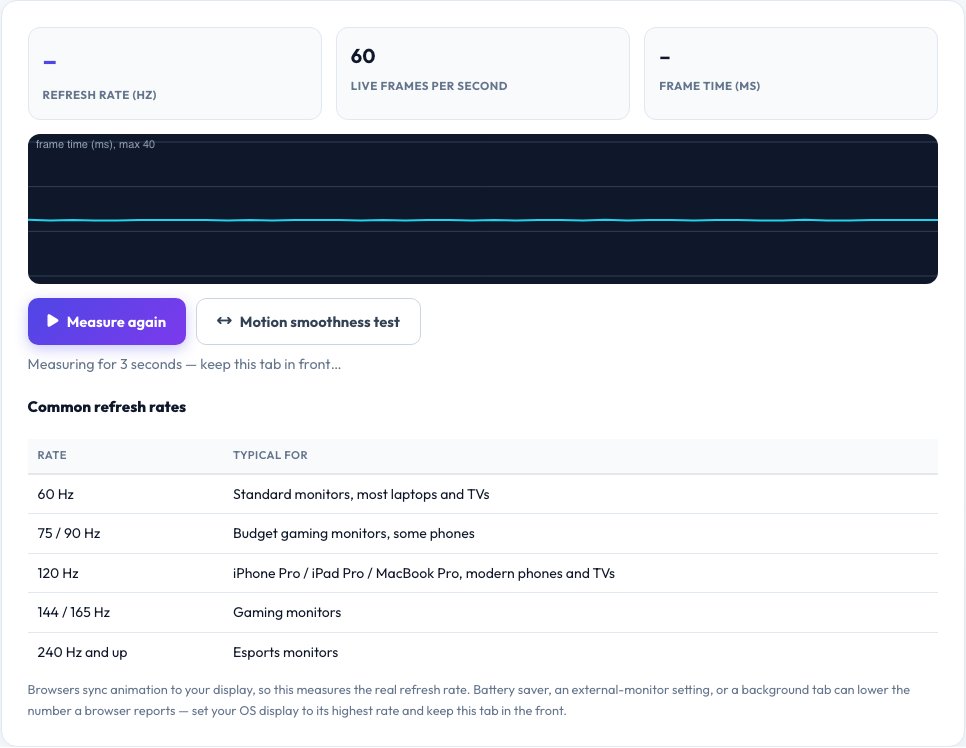
Free Refresh Rate Test — Find Out How Many Hz Your Screen Really Runs
A monitor's refresh rate is how many times per second it redraws the picture, measured in hertz (Hz). A 60 Hz screen refreshes 60 times a second; gaming displays reach 144, 165 or 240 Hz. This test measures your real refresh rate by timing how often your browser is allowed to draw a new frame, then rounds it to the nearest standard rate and shows the frame time in milliseconds.
A live graph shows the frame time of each frame so you can spot dropped or late frames, and a moving-ball test lets you judge motion smoothness with your eyes. Because the number comes from your actual display and browser, it is a good way to check that Windows, macOS or your phone is really running at 120 or 144 Hz instead of silently falling back to 60.
Key features
Real Hz measurement
Timing of true display refreshes, rounded to standard rates.
Frame time graph
Live chart to spot stutter and dropped frames.
Motion test
A moving ball to judge smoothness.
Works everywhere
PCs, Macs, phones, tablets and TVs with a browser.
How to use it
- Keep this tab in front and press Measure again if needed.
- Wait three seconds while frames are timed.
- Read the Hz, frame time and dropped-frame count.
- Try the motion test to compare with another refresh rate.
Worked example
Example
Median frame time 6.94 ms → 144 Hz.
Median frame time 16.67 ms → 60 Hz (a 144 Hz monitor left on 60 Hz in the display settings).
Who uses this tool
Gamers
Verify a 144 Hz or 240 Hz monitor is really running at that rate.
Phone and laptop buyers
Check 90 or 120 Hz displays.
Developers and designers
Test animation smoothness on real devices.
Tips for the best results
- Set the highest rate in Windows display settings, macOS display settings or your GPU control panel.
- Use a DisplayPort or HDMI cable that supports the refresh rate.
- Turn off battery saver, which can cap browsers at 60 Hz.
- Keep the tab visible — background tabs are throttled.
Common mistakes to avoid
- Believing the monitor's box instead of measuring.
- Testing in a background tab or a low-power mode.
- Confusing frames per second in a game with the display's refresh rate.
Why use AZRS QuickFix?
It is 100% free, needs no signup and has no watermark or usage limits. The tool runs in your browser, so what you type stays on your device, and it works on phones, tablets and desktops. New tools are added every week — bookmark this page or browse the full QuickFix toolbox.
Frequently asked questions
What is my monitor's refresh rate?
Run the test above. The big number shows the nearest standard rate to what your display delivered.
Why does it show 60 Hz on my 144 Hz monitor?
The rate is probably set to 60 Hz in your operating-system display settings, or the cable or port cannot carry more.
What does frame time mean?
The time between two screen refreshes: 16.7 ms at 60 Hz, 8.3 ms at 120 Hz, 6.9 ms at 144 Hz.
Can my phone show 120 Hz?
Yes, on phones and tablets with a high-refresh display — battery saver modes often lock it to 60 Hz.
Is the result exact?
It is measured over about three seconds, so it can differ by a fraction of a hertz; variable-refresh displays may vary.
Does higher Hz matter?
Higher refresh rates make motion, scrolling and fast games look smoother and reduce input lag.