PDF to Images (PNG) Converter
Convert every page of a PDF into a real, full-resolution PNG image and download them all as a ZIP · free, no signup
See PDF to Images (PNG) Converter in action
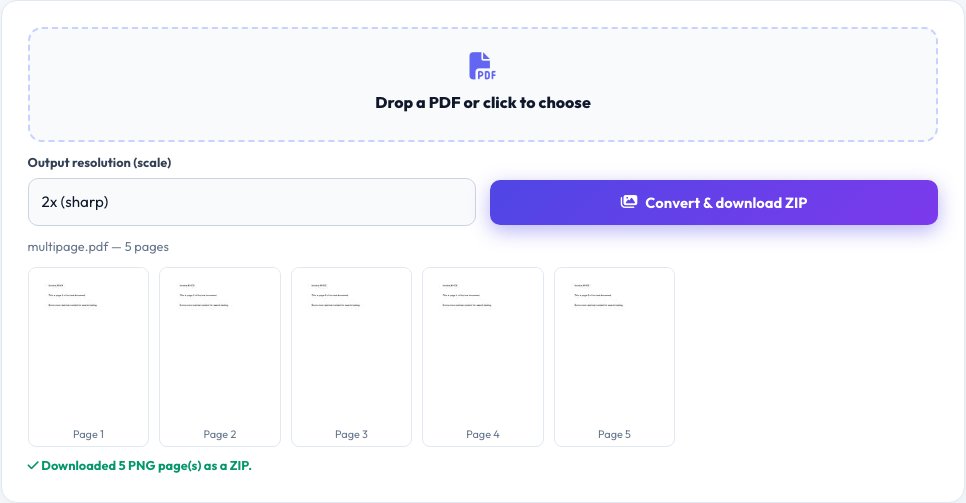
PDF to Images Converter
Sometimes you need each page of a PDF as a standalone image — to drop into a slide deck, post individually, or process with an image tool that can't read PDFs. This tool loads your PDF with pdf.js (the same real PDF rendering engine used elsewhere on this site) and renders every page to a canvas at your chosen resolution, then converts each canvas into a real PNG image.
All the generated PNGs are automatically packaged into a single ZIP file for download, so a 40-page PDF becomes one convenient download instead of 40 separate ones — the whole process, from PDF parsing to image rendering to ZIP packaging, happens locally in your browser.
Key features
Real full-resolution rendering
Uses pdf.js to genuinely render each page's actual content, not a low-res thumbnail.
Adjustable output resolution
Choose a scale factor to balance image detail against file size for your use case.
Every page, one ZIP download
All pages are automatically bundled into a single ZIP so multi-page PDFs download in one click.
Runs entirely client-side
The PDF is parsed and rendered locally — it's never uploaded anywhere.
How to use it
- Drop in your PDF file.
- Choose the output resolution (scale factor) for the images.
- Click Convert — every page renders to a real PNG.
- Download the ZIP containing every page as its own PNG image.
Worked example
Example
A 12-page PDF report converted at 2x scale produces 12 individual PNG files, each named page-01.png through page-12.png, each a real full-resolution rendering of that page's actual content, all packaged into one downloadable report-pages.zip.
Who uses this tool
Anyone building a slide deck or social post from a PDF page
Get a real standalone image of a single page without screenshotting.
Users of tools that only accept images, not PDFs
Convert each page to a usable image format for those tools.
Anyone archiving or previewing PDF content as images
Generate real image thumbnails or full-page previews of every page at once.
Tips for the best results
- A higher scale factor produces sharper, larger images but also larger files and slower conversion — 2x scale is usually a good balance for on-screen or print use.
- Very long PDFs (100+ pages) at high resolution can use significant browser memory during conversion — consider a lower scale factor for very large documents.
- Text in the resulting PNG is now a flat image, not selectable/searchable text — this is expected since the whole point is converting to a real image format.
Common mistakes to avoid
- Choosing a very high scale factor for a huge PDF and running into browser memory limits — start with a lower scale and increase only if you need more detail.
- Expecting the resulting images to still contain selectable text — a PNG is a flat raster image by definition, with no text layer.
- Forgetting that scanned (image-only) PDF pages will convert fine but won't gain any new text detail that wasn't already visually present in the scan.
Why use AZRS QuickFix?
It is 100% free, needs no signup and has no watermark or usage limits. The tool runs in your browser, so what you type stays on your device, and it works on phones, tablets and desktops. New tools are added every week — bookmark this page or browse the full QuickFix toolbox.
Frequently asked questions
Does this keep full resolution or just make thumbnails?
It renders each page at your chosen scale factor using pdf.js's real rendering engine — at 2x-3x scale this produces genuinely high-resolution images suitable for print, not low-res thumbnails.
Can I choose JPG instead of PNG?
The tool exports PNG by default to avoid introducing new lossy compression artifacts on top of the PDF's original content; PNG is lossless and preserves text and line-art edges cleanly.
Will this work on a scanned PDF?
Yes — it renders whatever content is on each page, whether that's real text/vector content or a scanned image, exactly as it appears in the PDF.
How are multiple pages delivered?
All the generated PNGs are automatically packaged into a single ZIP file, so you get one download regardless of how many pages the PDF has.
Is the PDF uploaded to a server?
No — pdf.js parses and renders the PDF entirely in your browser; the file never leaves your device.
Is my data stored?
No, nothing is saved after you leave the page.