Touch Screen Test (Multi-Touch & Dead Zones)
Check multi-touch, draw with your fingers and find dead zones on any touch screen · free, no signup
See Touch Screen Test (Multi-Touch & Dead Zones) in action
Free Touch Screen Test — Multi-Touch Points and Dead Zone Check
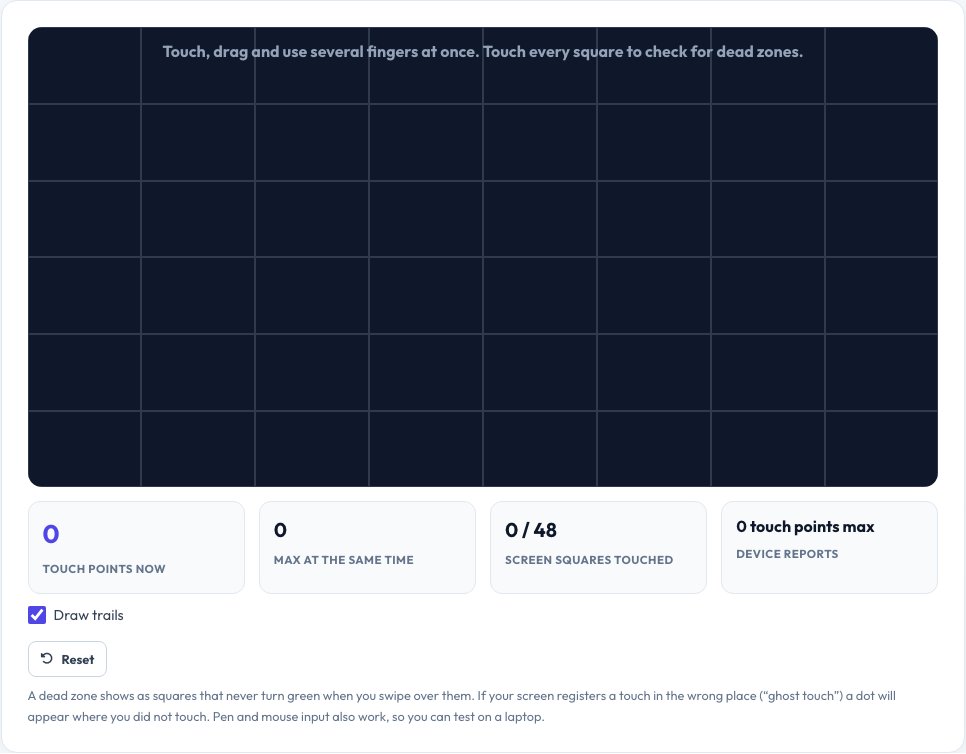
A touch screen that ignores parts of the display, or registers touches that never happened, is hard to diagnose by feel. This test gives you a black canvas: every finger you put down draws a coloured dot and trail, with a live count of touch points and the highest number of simultaneous touches your screen managed.
The screen is also split into 48 squares that turn green the first time they are touched. Swipe across the whole display and any square that stays dark marks a dead zone. Ghost touches show as dots you did not make. It works with fingers, styluses and even a mouse, so you can test on phones, tablets, touch laptops, kiosks and drawing displays.
Key features
Multi-touch counter
Live and maximum simultaneous touch points.
Dead-zone map
48 squares turn green as each area responds.
Trails and colours
Each finger gets its own colour for tracking problems.
Any device
Phones, tablets, touch laptops and kiosks.
How to use it
- Open the page on the touch device.
- Touch and drag with one finger, then several fingers together.
- Swipe until all 48 squares are green.
- Note any square that never lights up or any ghost dots.
Worked example
Example
10 touch points at once · 48/48 squares → a healthy screen.\nBottom-right corner never turns green → dead zone (screen or protector fault).
Who uses this tool
Phone and tablet buyers
Check a used or refurbished screen before paying.
Repair shops
Confirm a new display or digitiser works everywhere.
Kiosk and POS admins
Verify multi-touch and edge response.
Tips for the best results
- Remove the screen protector to see if it causes dead zones.
- Wipe the screen and dry your hands — moisture creates ghost touches.
- Test edges and corners carefully; they fail first.
- Check with the charger both connected and disconnected.
Common mistakes to avoid
- Testing with wet or greasy hands.
- Blaming the screen when a case presses on the edge.
- Skipping the corners of the display.
Why use AZRS QuickFix?
It is 100% free, needs no signup and has no watermark or usage limits. The tool runs in your browser, so what you type stays on your device, and it works on phones, tablets and desktops. New tools are added every week — bookmark this page or browse the full QuickFix toolbox.
Frequently asked questions
How do I test my touch screen?
Swipe your finger over the whole screen until all squares are green and try several fingers at once.
What is a dead zone?
An area of the screen that does not respond to touch.
What is ghost touch?
The screen registers touches that you did not make, often from moisture, damage or a bad charger.
How many touch points should I see?
Most phones support 5 to 10 points; the device's maximum is shown in the stats.
Does it work with a stylus?
Yes, pens and styluses that act as pointers are recorded.
Can I test on a laptop without touch?
Yes, use the mouse — it will draw, but multi-touch needs a touch screen.