Excel/Sheets Formula Explainer
Paste an Excel or Google Sheets formula and get a real, step-by-step structural breakdown of exactly what it computes · free, no signup
How Excel/Sheets Formula Explainer works, step by step
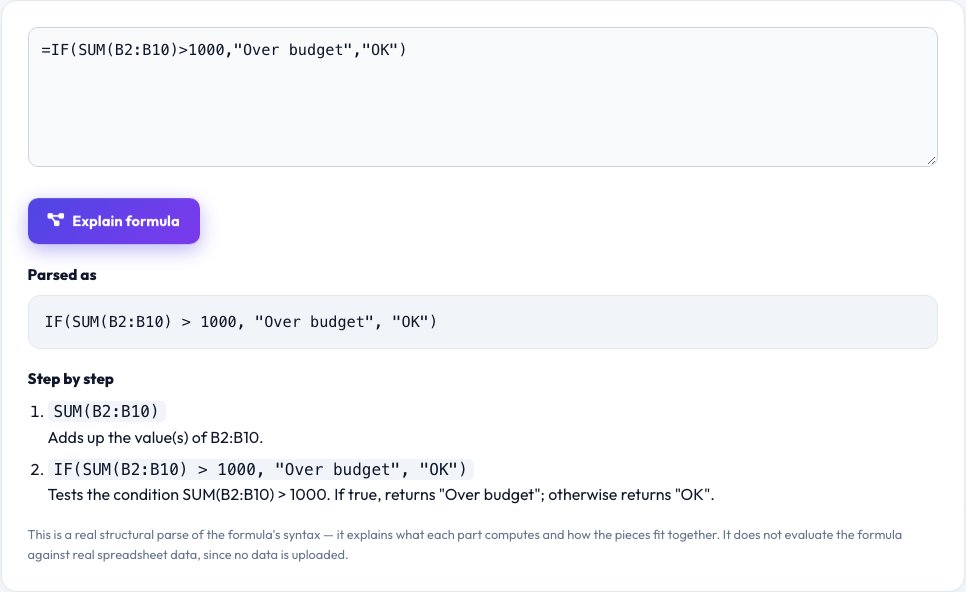
Paste your Excel or Google Sheets formula, starting with or without the leading =.
 Download it
Click Explain.
Excel/Sheets Formula Explainer
Inherited spreadsheets are full of formulas nobody remembers writing — nested IFs, VLOOKUPs, INDEX/MATCH combos, SUMIFS with five conditions. This tool runs a real recursive-descent parser over the formula text you paste — the same kind of deterministic parsing a spreadsheet engine itself would do — breaking it into its actual function calls, arguments, operators and cell/range references, rather than pattern-matching keywords or guessing from the text.
For each recognized function (SUM, AVERAGE, IF, IFS, VLOOKUP, HLOOKUP, INDEX, MATCH, SUMIF, SUMIFS, COUNTIF, COUNTIFS, CONCATENATE, IFERROR, ROUND, AND, OR, and more), it explains in plain English exactly what that function does and how the specific arguments you supplied plug into it — a real structural explanation of the formula's mechanics, not a data evaluation and not an AI guess at what the sheet 'probably' does.
Key features
Real recursive-descent parsing
Actually parses the formula's syntax tree — nested functions, operators and references — instead of scanning for keywords.
Plain-English breakdown per function
Each recognized function explains its real mechanics using your exact arguments.
Handles nesting
Correctly explains formulas with functions nested inside other functions' arguments, several levels deep.
Flags unrecognized functions honestly
If a function isn't in its dictionary, it says so plainly instead of pretending to explain it.
How to use it
- Paste your Excel or Google Sheets formula, starting with or without the leading =.
- Click Explain.
- See the formula broken into its real function calls, arguments and references.
- Read the plain-English explanation of exactly what each part computes, in order.
Worked example
Example
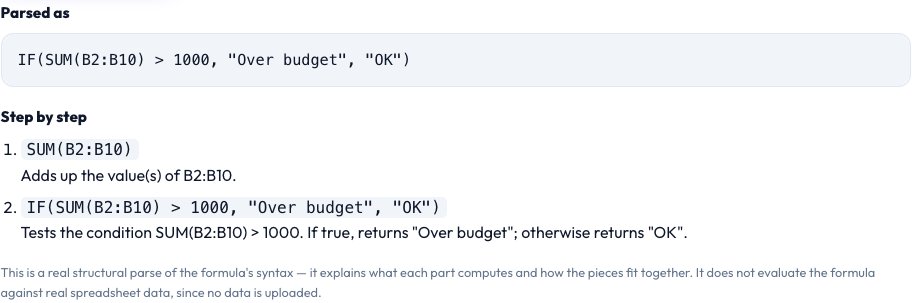
=IF(SUM(B2:B10)>1000,"Over budget","OK") is parsed as: an IF function with three arguments — a condition SUM(B2:B10)>1000 (itself a SUM over the range B2:B10 compared to 1000), a value if true ("Over budget"), and a value if false ("OK") — explained step by step in that exact structure.Who uses this tool
Anyone inheriting someone else's spreadsheet
Understand exactly what a complex formula does before trusting or editing it.
Students learning spreadsheet functions
See a real structural breakdown of how VLOOKUP, INDEX/MATCH or SUMIFS actually fit together.
Analysts auditing a financial model
Quickly confirm what a formula is really doing without manually tracing every nested function by eye.
Tips for the best results
- This explains the formula's real structure and mechanics, not the result — it does not evaluate the formula against actual cell data, since no spreadsheet data is uploaded.
- Extremely long or deeply nested formulas are still parsed correctly but the explanation gets longer too — read it top to bottom in the order the parser lists the nested parts.
- Google Sheets and Excel share the vast majority of common functions with identical syntax, so most formulas explain identically either way — a few sheets-only or Excel-only functions may show as unrecognized.
Common mistakes to avoid
- Pasting a formula with a typo (like a missing closing parenthesis) and expecting it to parse — fix the syntax error first; the tool will tell you where parsing failed.
- Expecting the tool to tell you the formula's numeric result — it explains structure and mechanics deterministically, it does not evaluate against real data.
- Assuming an unrecognized function means the parser is broken — it means that specific function isn't yet in the explanation dictionary, and the tool says so rather than fabricating an explanation.
Why use AZRS QuickFix?
It is 100% free, needs no signup and has no watermark or usage limits. The tool runs in your browser, so what you type stays on your device, and it works on phones, tablets and desktops. New tools are added every week — bookmark this page or browse the full QuickFix toolbox.
Frequently asked questions
Does this actually calculate the formula's result?
No — it explains what the formula's structure computes and how its pieces fit together, deterministically, from the formula text alone. It does not evaluate against real spreadsheet data, since no data is uploaded.
Which functions does it recognize?
Common Excel/Sheets functions including SUM, AVERAGE, IF, IFS, VLOOKUP, HLOOKUP, INDEX, MATCH, SUMIF, SUMIFS, COUNTIF, COUNTIFS, CONCATENATE, IFERROR, ROUND, AND, OR, MIN, MAX and more — an unrecognized function is clearly flagged rather than guessed at.
Does it work for Google Sheets formulas too?
Yes — the large majority of functions and syntax are identical between Excel and Google Sheets, so most formulas parse and explain the same way in either.
What if my formula has a syntax error?
The parser reports where parsing failed (like an unmatched parenthesis or a missing argument) instead of guessing at a broken structure.
Can it explain array formulas or LAMBDA?
Basic array-style ranges are supported; the newest dynamic-array and LAMBDA functions are less consistently recognized and may show as unrecognized — this is called out honestly rather than faked.
Is my data stored?
No — the formula text is parsed and explained entirely in your browser.