Professional Image Resizer
Resize, optimize, and transform your images with precision and ease
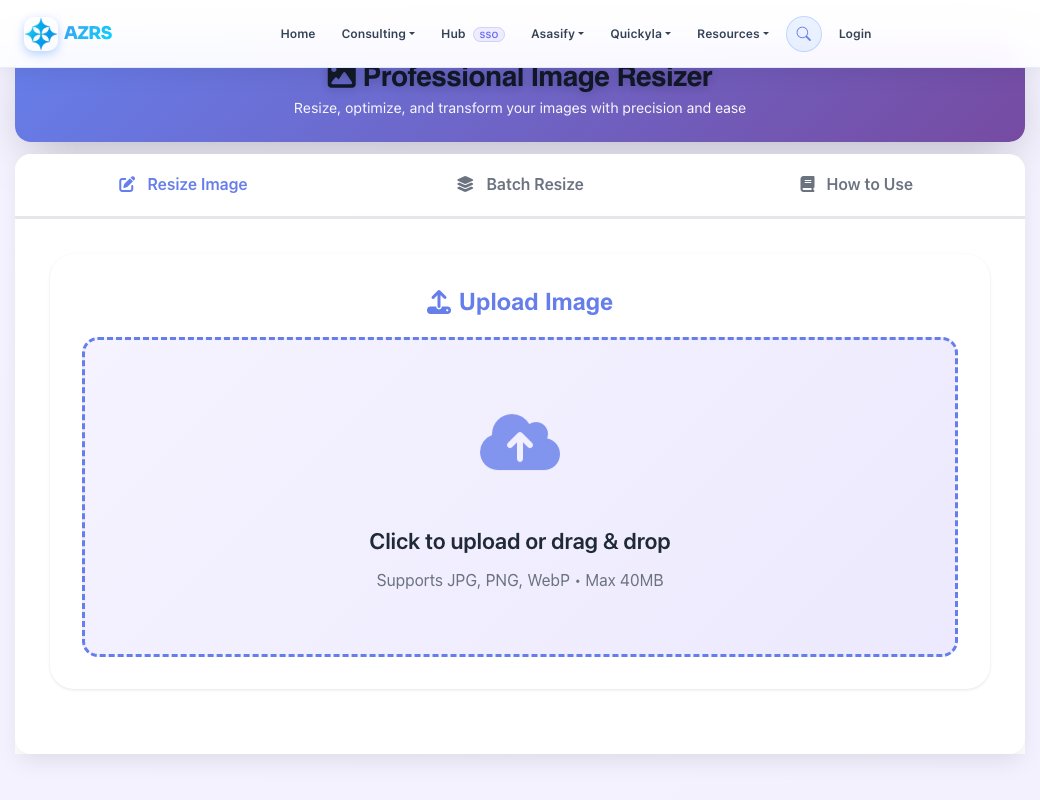
Upload Image
Image Resized Successfully!
Batch Resize Feature
Resize multiple images at once with the same settings. Perfect for processing large batches of photos quickly.
How to Use the Image Resizer
Upload Your Image
Click the upload zone or drag and drop your image file. Supported formats: JPG, PNG, WebP. Maximum file size: 40MB.
Choose Resize Method
Custom Size: Enter exact width and height in pixels
Percentage: Scale image by percentage (10%-500%)
Presets: Use optimized dimensions for social media platforms
Adjust Settings
Select output format (JPEG, PNG, or WebP) and adjust quality slider for file size optimization. Higher quality = larger file size.
Resize & Download
Click "Resize Image" to process. Use the before/after slider to compare results, then download your optimized image.
Pro Tips
- Lock Aspect Ratio: Prevent image distortion by maintaining original proportions
- WebP Format: Best compression for web use - smaller files with high quality
- Quality 80-90: Sweet spot for most images - good quality, reasonable file size
- Social Media Presets: Use presets for perfect dimensions on each platform
See Professional Free Image Resizer in action
Professional Free Image Resizer
Resize any JPG, PNG or WebP image using exact pixel dimensions, a percentage scale, or ready-made presets, with an aspect-ratio lock so proportions stay correct unless you want to stretch on purpose. A draggable resize handle on the live preview lets you resize visually and see the exact width/height in a tooltip as you drag.
Before downloading you can fine-tune the output quality with a compression slider, and the info panel next to the preview shows the current image dimensions and file size so you can judge the tradeoff between size and quality.
Key features
Three resize modes
Set an exact width and height, scale by percentage, or pick a ready-made size preset.
Aspect-ratio lock
Keep width and height proportional automatically, or unlock it to stretch deliberately.
Drag-to-resize preview
Drag a handle on the live image preview and see the live pixel dimensions in a tooltip.
Quality slider
Adjust output compression quality to balance file size against image sharpness before download.
How to use it
- Upload a JPG, PNG or WebP image.
- Choose a resize mode: exact dimensions, percentage or a preset.
- Adjust the aspect-ratio lock and quality slider as needed.
- Preview the result and download the resized image.
Worked example
Example
You need a 1200×630 image for a social share preview but your photo is 4000×3000. Switch to exact dimensions, unlock or keep the aspect ratio depending on how much crop you can accept, type 1200 into width, and the resizer produces a properly scaled version ready to download.
Who uses this tool
Bloggers & marketers
Resize images to the exact dimensions required by a website, ad platform or social network.
Online sellers
Standardise product photo dimensions across a whole catalogue.
Students & professionals
Shrink a large photo down to fit an email attachment size or document limit.
Tips for the best results
- Keep the aspect-ratio lock on unless you specifically need to stretch or squash the image.
- Use percentage mode when you just want a smaller version of the same image without calculating exact pixels.
- Lower the quality slider gradually and compare the preview — you can often cut file size significantly before quality loss is visible.
- Check the image-info panel after resizing to confirm the final file size meets any upload limit you're working with.
Common mistakes to avoid
- Unlocking aspect ratio without meaning to, which distorts the image noticeably.
- Upscaling a small image far beyond its original size, which introduces blur since no new detail can be created.
- Setting quality too low for an image with text or fine detail, causing visible compression artefacts.
Why use AZRS QuickFix?
It is 100% free, needs no signup and has no watermark or usage limits. The tool runs in your browser, so what you type stays on your device, and it works on phones, tablets and desktops. New tools are added every week — bookmark this page or browse the full QuickFix toolbox.
Frequently asked questions
Is the image resizer free?
Yes, free with no signup and no watermark added.
Which formats does it support?
JPG, PNG and WebP for upload and export.
Can I resize by percentage instead of exact pixels?
Yes, switch to percentage mode and use the slider or type a percentage directly.
Will resizing reduce image quality?
Downscaling has minimal quality loss; the quality slider controls compression for the final file separately from the resize itself.
Are there ready-made size presets?
Yes, common presets are available under the Presets mode for quick selection.
Is my image uploaded to a server?
No, resizing happens locally in your browser.