Microphone Test
Check your mic level live, and record a 5-second test to hear yourself · free, no signup
See Microphone Test in action
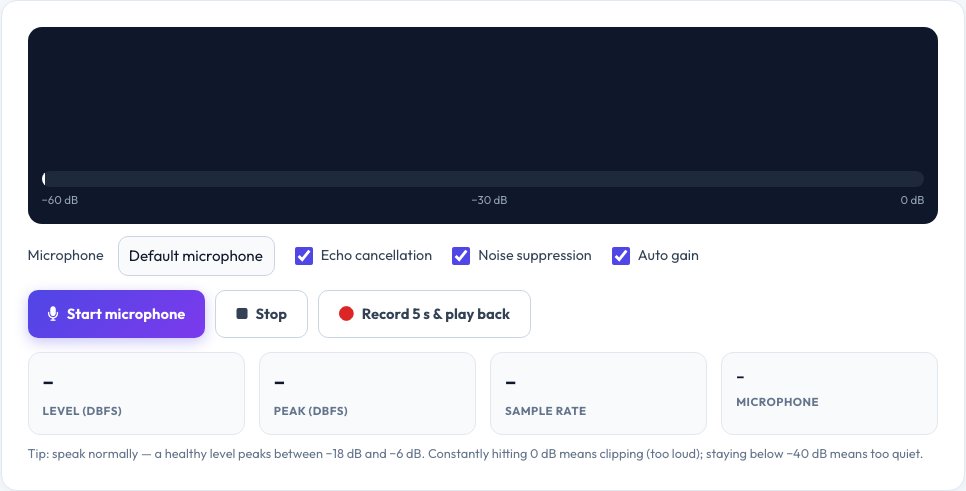
Free Online Microphone Test — Live Level Meter and Playback
A microphone that seems fine can still be too quiet, too loud or picking up the wrong device. This microphone test shows your voice as a live waveform and a decibel level meter with a peak-hold marker, so you can see instantly whether the mic is working and how strong the signal is.
Switch between microphones, turn echo cancellation, noise suppression and automatic gain on or off to hear how they change the sound, and record a five-second clip that plays back immediately. Audio is analysed in your browser only — nothing is uploaded — and the microphone stops as soon as you press Stop or leave the page.
Key features
Live level meter
Decibel bar with peak hold and a moving waveform.
Microphone picker
Compare headset, laptop and USB microphones.
Processing toggles
Test with and without echo cancellation, noise suppression and auto gain.
Record and play back
Hear exactly how you sound to others.
How to use it
- Click Start microphone and allow access.
- Speak normally and watch the level bar move.
- Aim for peaks between −18 dB and −6 dB.
- Press Record 5 s & play back to hear your voice.
Worked example
Example
Speaking normally: level −24 dBFS, peak −9 dBFS → a healthy, clear signal.
Peak stays at 0 dBFS → the microphone is clipping; lower the input gain.
Who uses this tool
Remote workers and teachers
Check the mic before calls, lessons and webinars.
Podcasters and streamers
Set input levels and compare microphones.
Gamers
Confirm your headset mic works and is not too quiet.
Tips for the best results
- Speak at your normal volume about a hand's width from the mic.
- Turn off noise suppression if your voice sounds thin or robotic.
- Choose the right device in the list — laptops often have several inputs.
- Use headphones for playback to avoid feedback.
Common mistakes to avoid
- Clipping: a peak at 0 dB distorts the sound even if it seems loud enough.
- Leaving the wrong default input selected in system settings.
- Testing with the microphone muted by a hardware switch or a keyboard shortcut.
Why use AZRS QuickFix?
It is 100% free, needs no signup and has no watermark or usage limits. The tool runs in your browser, so what you type stays on your device, and it works on phones, tablets and desktops. New tools are added every week — bookmark this page or browse the full QuickFix toolbox.
Frequently asked questions
Why is my microphone not working?
Usually the browser permission is blocked, the wrong input device is selected, or the mic is muted in system settings. The messages on this page point to the cause.
What is a good microphone level?
Speech should peak between about −18 dB and −6 dB. Constant 0 dB means clipping; below −40 dB is too quiet.
Is my voice recorded or sent anywhere?
No. Analysis and the 5-second test recording happen in your browser and are discarded when you leave.
What do echo cancellation and noise suppression do?
Echo cancellation removes speaker sound picked up by the mic; noise suppression reduces background noise. Both help calls but can colour music and singing.
Does it work with Bluetooth headsets?
Yes, but Bluetooth headsets often drop to a lower-quality microphone mode when the mic is active.
Can I use it on my phone?
Yes, on modern browsers over HTTPS.