SVG to PNG / JPG Converter
Convert an SVG vector image to a PNG or JPG raster image at any pixel size · free, no signup
See SVG to PNG / JPG Converter in action
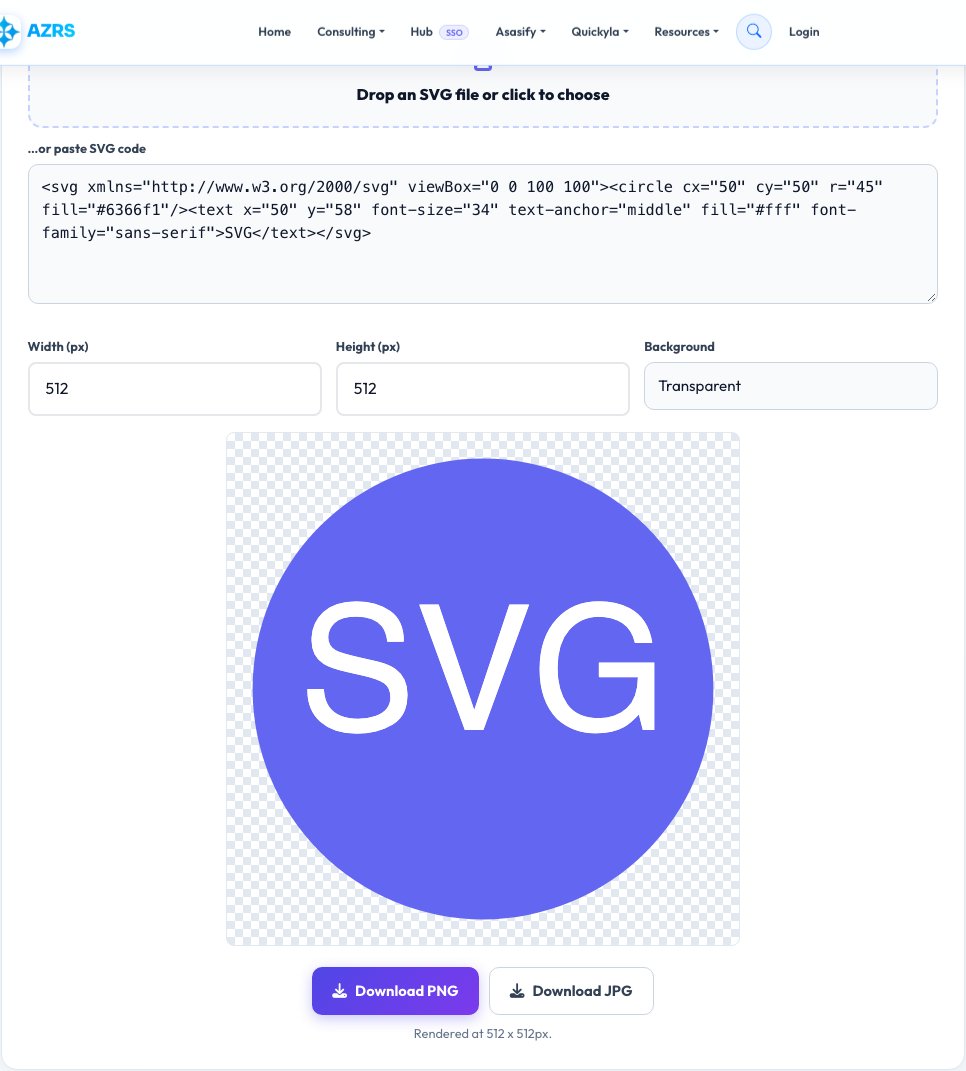
Free SVG to PNG / JPG Converter
SVG files are vector graphics — resolution-independent shapes and paths — but many places (social media, older software, image fields that don't accept SVG) need a plain raster image instead. Upload an SVG file or paste its XML code directly, set the exact width and height in pixels you need, and this tool draws it onto an HTML canvas at that resolution and exports a real PNG or JPG.
Choose a transparent background (PNG only) or a solid fill color for JPG export or for PNGs that need a background baked in. Because the SVG is re-rendered at your chosen resolution rather than just scaling an existing raster, the output stays crisp at whatever size you request, from a small icon to a large print-ready image.
Key features
Exact pixel dimensions
Set precisely the width and height you need, not just a scale multiplier.
Transparent or solid background
PNG with real transparency, or a solid fill baked in for JPG.
Paste SVG code directly
No file needed — paste raw SVG markup and convert it.
Fully local
Rendered with the browser's own SVG engine on canvas — nothing is uploaded.
How to use it
- Upload an SVG file, or paste SVG code directly.
- Set the output width and height in pixels.
- Choose a background: transparent, white or a custom color.
- Download as PNG or JPG.
Worked example
Example
A 24x24 vector icon exported at 512x512px stays perfectly crisp, because it's re-rendered from the vector paths at that resolution rather than stretched from a small raster.
Who uses this tool
Designers exporting icons or logos
Get exact pixel-size PNGs for app icons, favicons or social avatars from one master SVG.
Developers
Convert an inline SVG asset to PNG for places that don't support vector formats.
Anyone who received an SVG they can't use
Turn it into a standard image file usable anywhere.
Tips for the best results
- Set dimensions that match your target use case exactly (e.g. 512x512 for an app icon) rather than exporting oversized and resizing later.
- Use PNG with transparency for logos/icons that need to sit over different backgrounds; use JPG with a solid background for photos or when file size matters more than transparency.
- If your SVG references external fonts or images, embed them in the SVG first — the converter can only render what the browser can resolve locally.
Common mistakes to avoid
- Exporting at a small fixed size and then trying to enlarge the PNG later — export directly at the largest size you might need, since the source is vector and costs nothing extra to render bigger.
- Choosing JPG for a logo that needs a transparent background — JPG has no transparency support, so use PNG instead.
- Pasting SVG code with a syntax error and expecting it to render — verify the SVG opens correctly in a browser tab first if the conversion fails.
Why use AZRS QuickFix?
It is 100% free, needs no signup and has no watermark or usage limits. The tool runs in your browser, so what you type stays on your device, and it works on phones, tablets and desktops. New tools are added every week — bookmark this page or browse the full QuickFix toolbox.
Frequently asked questions
Does the PNG stay sharp at large sizes?
Yes — the SVG is re-rendered from its vector paths at your chosen resolution, not stretched from an existing raster image, so it stays crisp at any size you export.
Can I get a transparent background?
Yes, choose transparent background with PNG export; JPG does not support transparency, so a solid background color is used for that format.
Can I paste SVG code instead of uploading a file?
Yes, there's a field for pasting raw SVG markup directly, no file needed.
Why did my conversion fail?
Usually an SVG syntax error, or the SVG referencing an external resource (font, image) the browser can't load locally — check it opens correctly in a browser tab first.
Is my SVG uploaded to a server?
No, it's rendered entirely in your browser using canvas.
Is this free?
Yes, unlimited conversions, no signup.